
Tidaro has 2 types of office zones: open and restricted. In an open zone, everybody can book desks. A restricted zone is available only to employees who are assigned to it.
You can assign teams to specific zones, and no one else will be able to book desks there. This is especially helpful if you have office rooms or spaces dedicated to particular teams.
Good to know: employees are assigned to zones by administrators. You can only assign employees to private zones. In public zones you can only assign a manager.
In short
- Restricted (private) zones are available only to the employees assigned to them.
- You assign employees in Preferences > Manage Office Area, on the Employees tab.
- You decide which zones are private during app configuration.
- To change a zone's status, contact us at support@tidaro.com.
When should I assign employees to a zone?
- Assign all employees from one department to a specific zone, so they have a private space to work together.
- Assign teams that often work together to the same zones. This way they can sit next to each other when they need to.
- Assign new employees and the people responsible for their onboarding to the same zone, so they stay together during the first days.
How to assign an employee to a zone
- Go to the Preferences tab in the menu.
- Go to Manage Office Area and select the zone you want to add employees to.
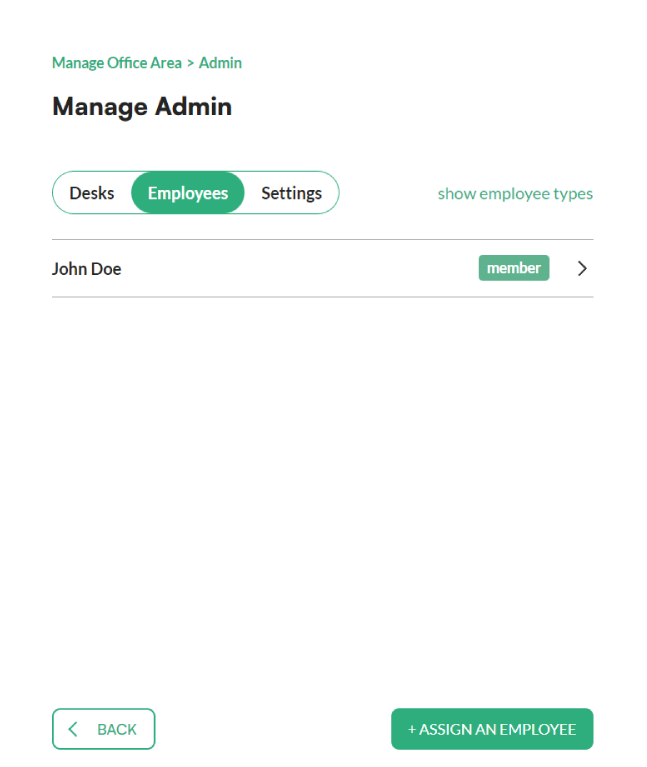
- Click Employees at the top of the screen.
- Click Assign an employee at the bottom.
- Select the employee you want to add to the zone from the list.
- Confirm with the Assign button.
Frequently asked questions
Can I assign employees to a public zone?
No. You can only assign employees to private zones. In a public zone you can only assign a zone manager.
How do I change a public zone to a private one?
You decide which zones are private during app configuration. If you want to change a zone's status later, contact us at support@tidaro.com.