
In Tidaro you can book a desk in the office in the mobile app or the web app. You can pick a specific desk from the interactive office map, or let the system assign you the first available one.
In short
- First, select the office area you want to book in.
- To pick a desk yourself, use the interactive office map. Available desks are marked with circles.
- To get the first available desk, click Book any.
- In the mobile app, you can book a desk for one or more days.
How to book a desk
In the mobile app
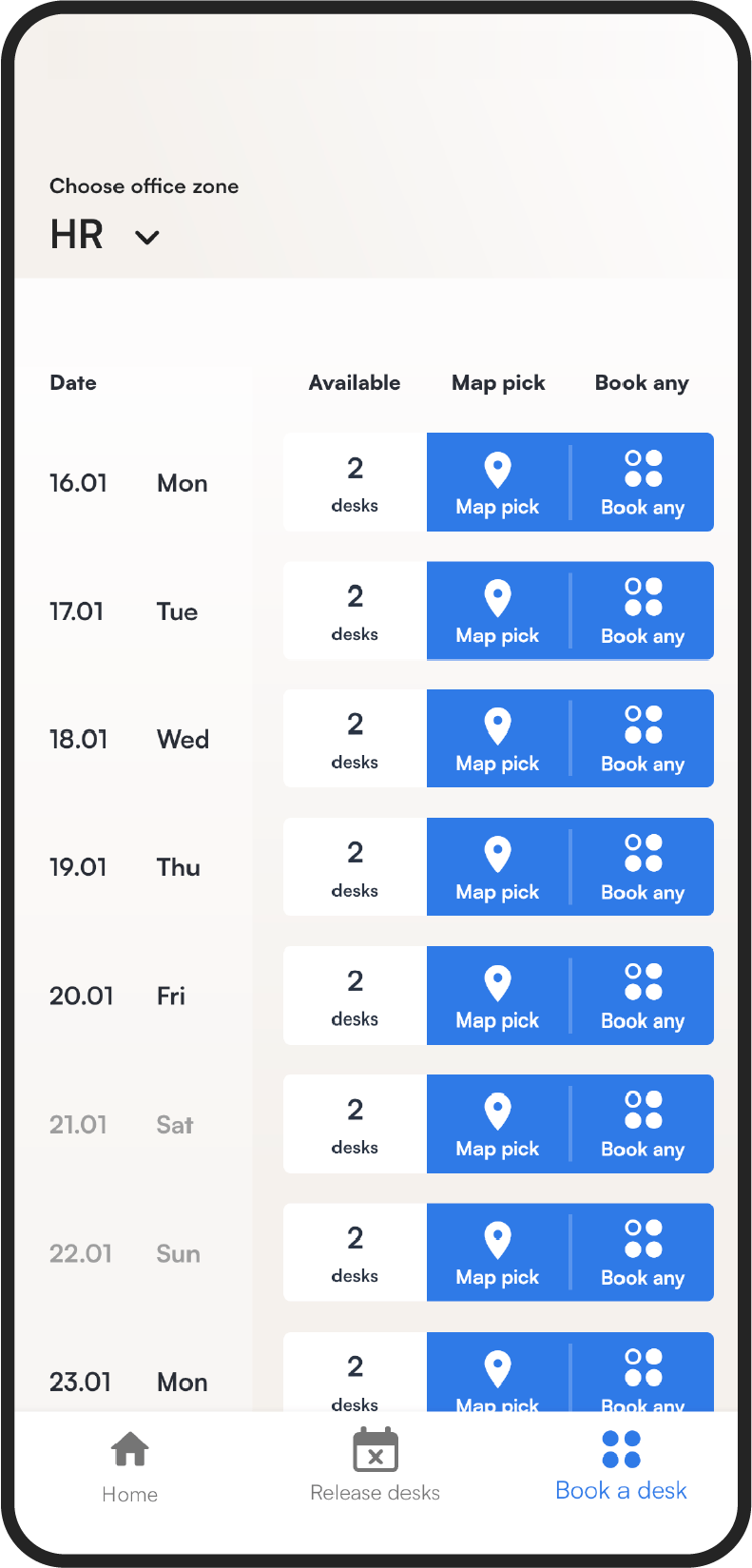
- Go to the Book a desk tab. Here you can book a desk for one or more days.
- From the list at the top of the screen, select the area you want to book in.
- Choose how to book:
- click Map pick to select a desk from the interactive office map, or
- click Book any to let the system book a desk for you.
Using the interactive map
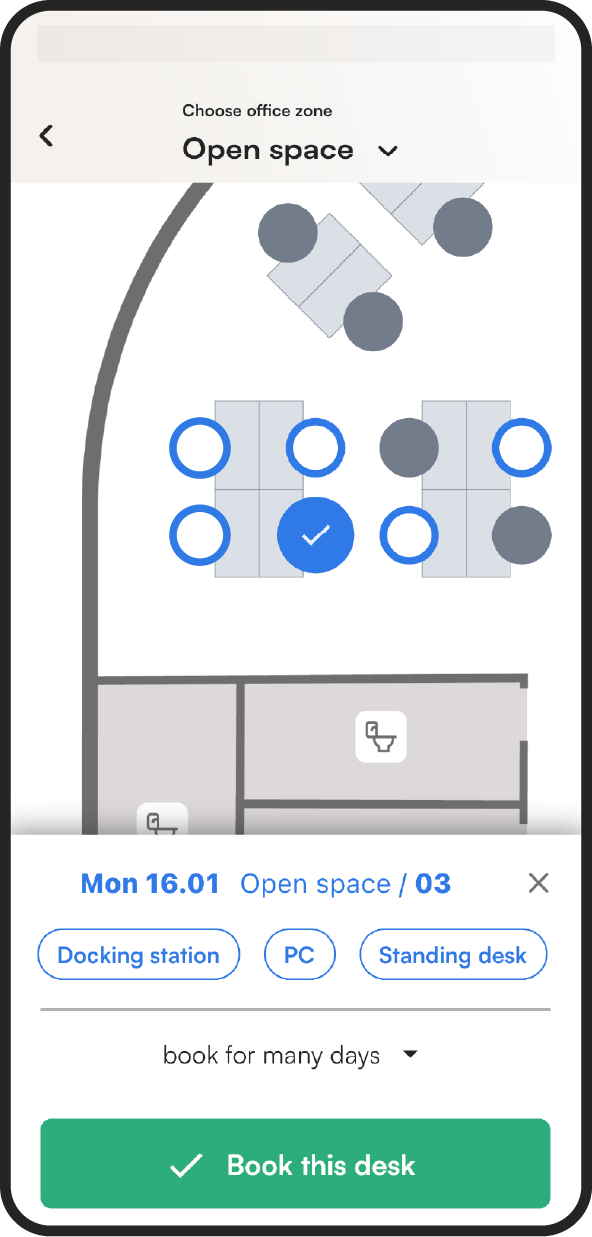
When you select Map pick, the app shows an interactive map of the office. White-green circles mark desks that are ready to book.
- Click one of the white-green circles.
- Click Book this desk at the bottom of the screen.
In the web app
- In the menu, go to the desks section.
- Open the book a desk tab.
- From the drop-down menu, choose the office area you want to book in.
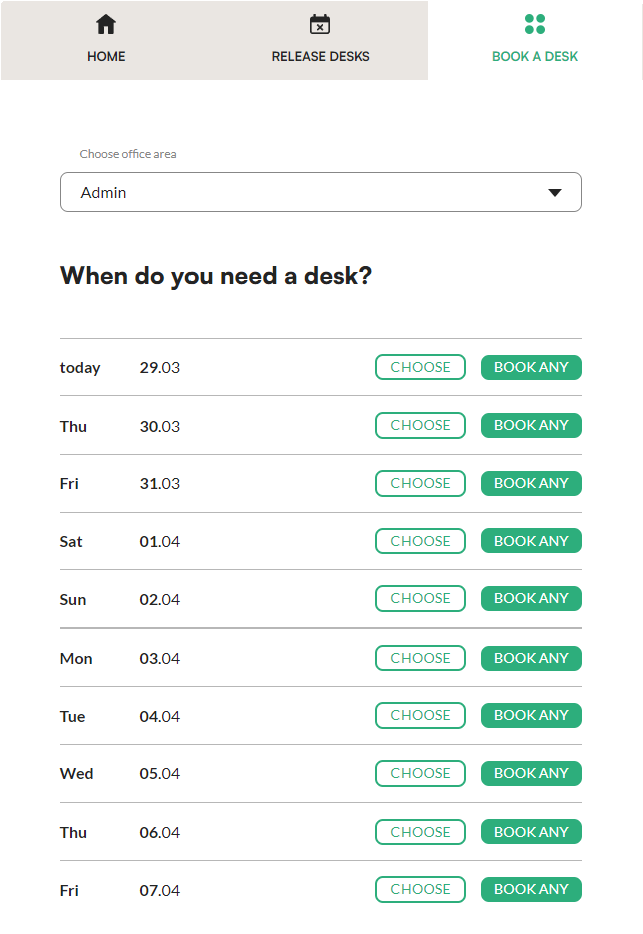
- Choose how to book:
- click book any and the system assigns you the first available desk, or
- click choose to pick your desk from the office map.
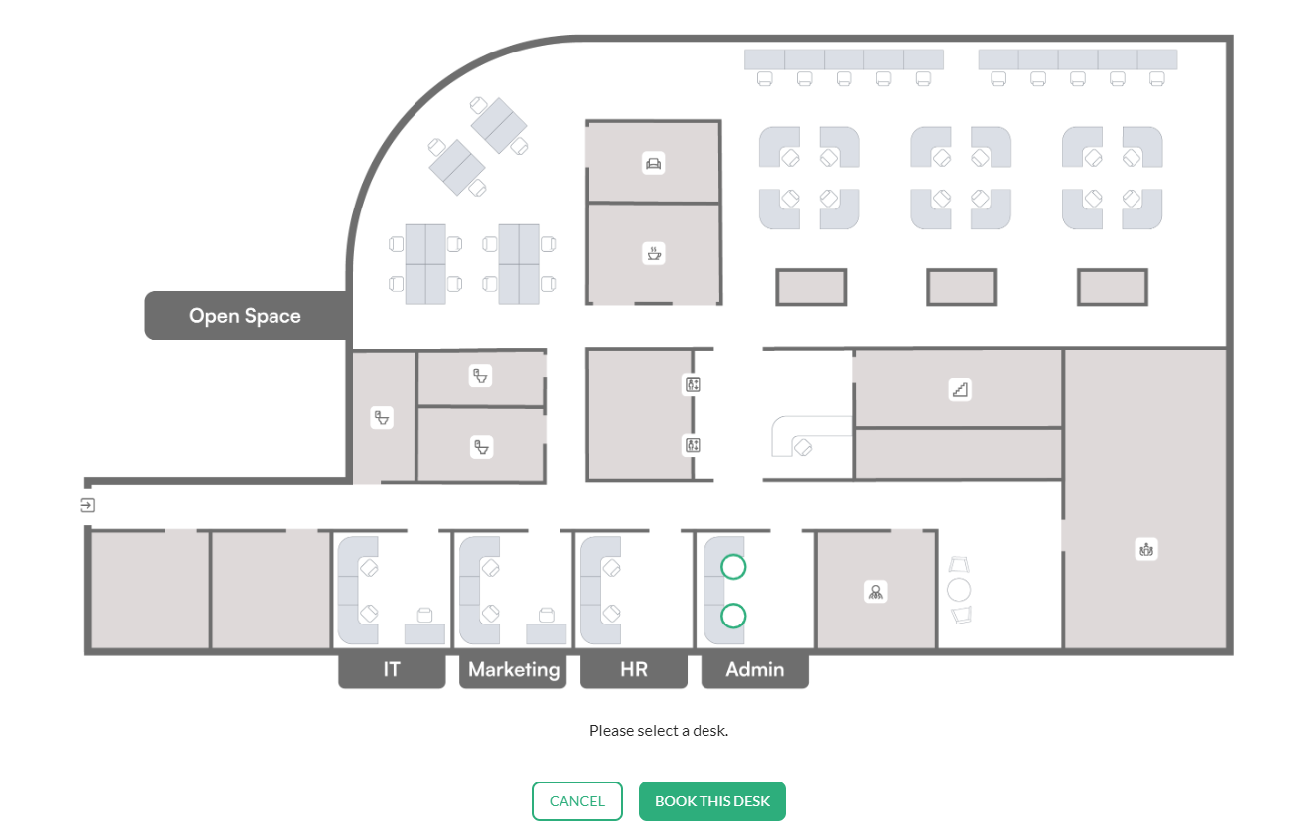
- If you use the map, click an available desk (marked with a circle).
- Click book this desk at the bottom of the screen.
Frequently asked questions
Can I book a desk for several days at once?
Yes. In the Book a desk tab in the mobile app, you can book a desk for one or more days.
I'm using the free demo account. Why is one desk taken?
In the free demo account, there is one employee with a permanently assigned desk.