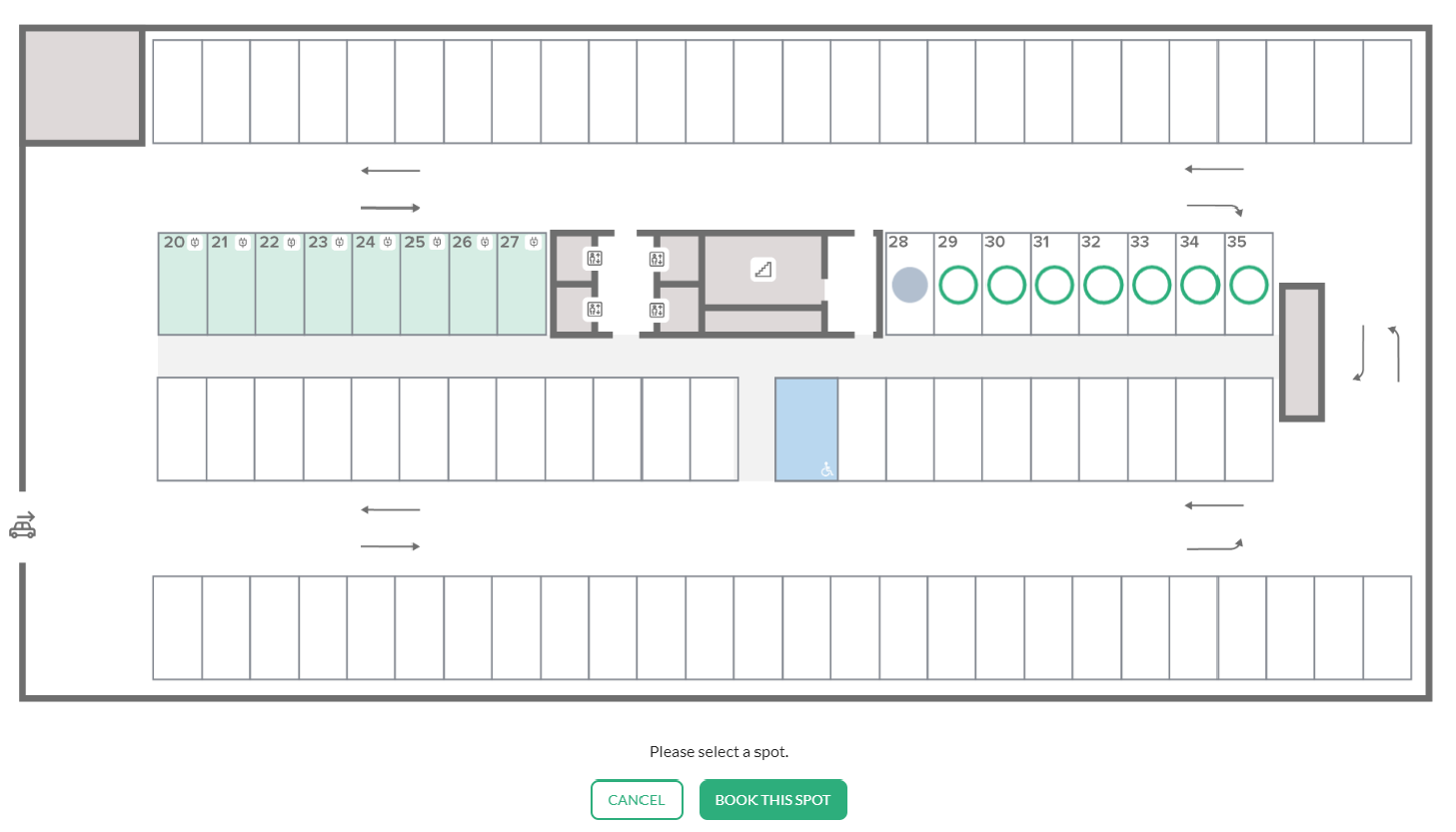
In Tidaro you can book a parking spot for the whole day or for a few hours. You can let the system assign you the first available spot, or pick a specific spot on the interactive map of the car park.
Good to know: booking a spot for a few hours is not available for everyone. If you want this feature turned on, contact us at support@tidaro.com and we will add you to the waiting list to enable it.
In short
- In the mobile app, go to Parking > Book a spot. In the web app, go to Spots > Book a spot.
- Choose a parking area and book for the whole day or for specific hours.
- Tap or click Book any to get the first available spot, or pick a specific spot on the map.
- On the map, available spots are shown as green circles.
How to book a parking spot
In the mobile app
- Open Tidaro and, in the Parking tab, go to Book a spot.
- From the dropdown menu, choose the parking area where you want to book a spot.
- If you need a spot for the whole day, select All day. Otherwise, choose the hours and minutes you need.
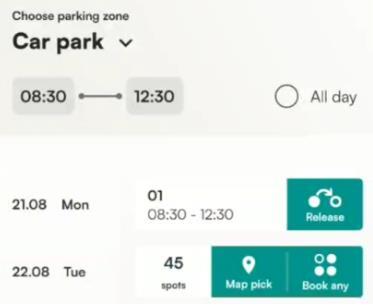
Next, decide whether you want any available spot or a specific one.
Any available spot
- Tap Book any.
- The system assigns you the first available spot on your chosen day.
A specific spot from the map
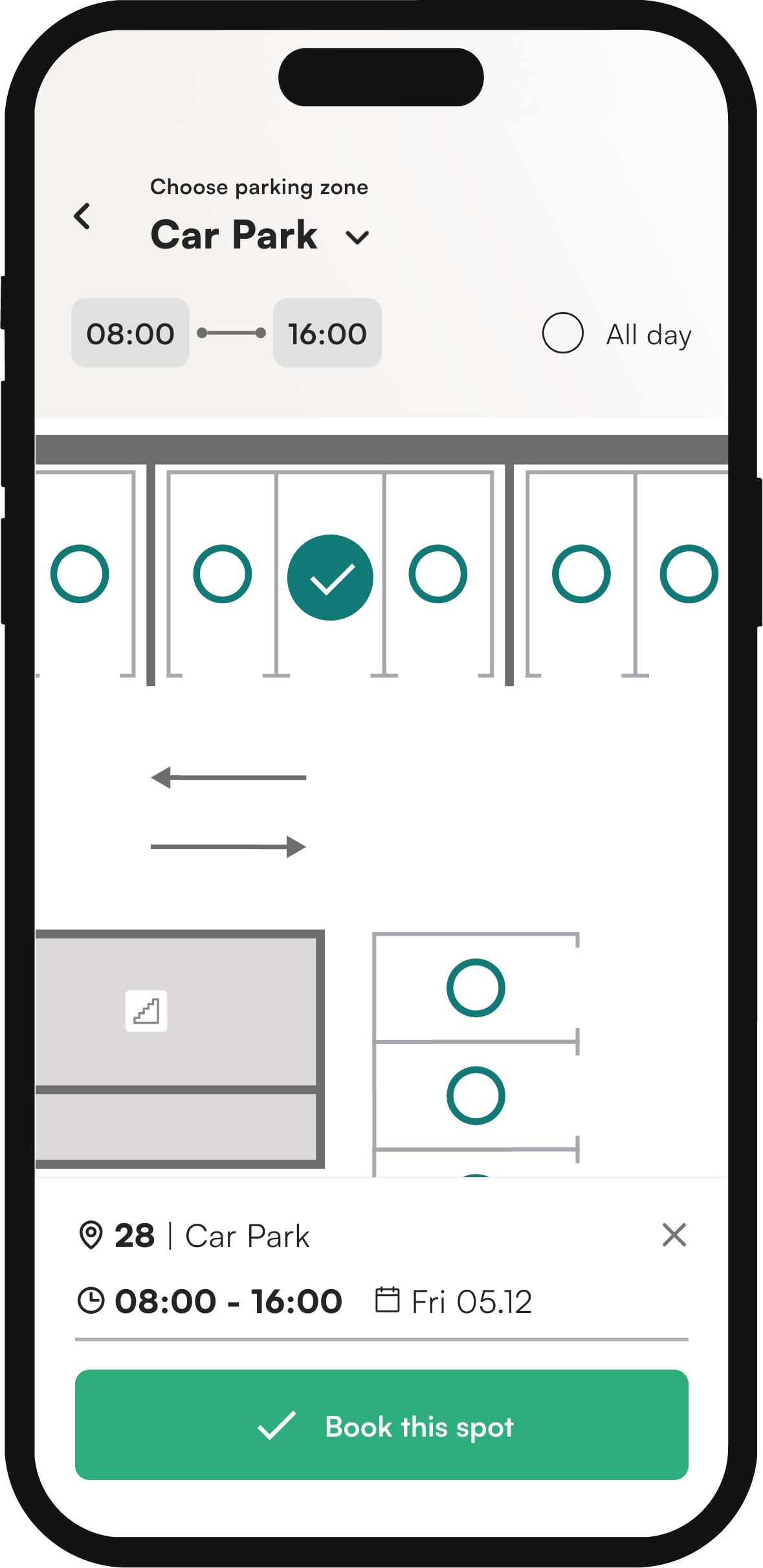
- Tap Map Pick to open the map of the car park. Available spots are shown as green circles. You can zoom in with your fingers.
- Tap the green circle for the spot you want.
- Confirm with the Book this spot button at the bottom of the screen.
In the web app
- Open Tidaro and, in the Spots tab, go to Book a spot.
- From the dropdown menu, choose the parking area where you want to book a spot.
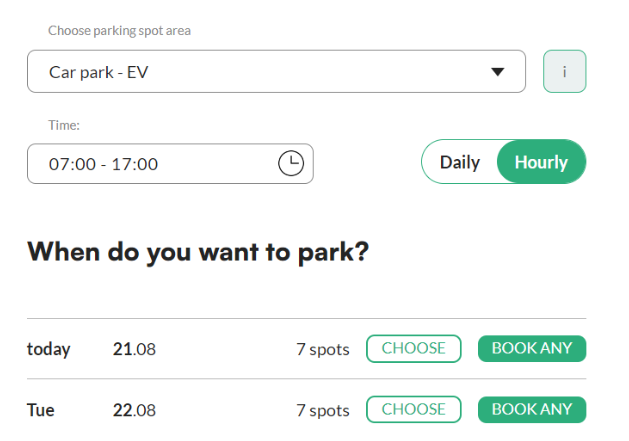
- If you need a spot for the whole day, switch the toggle from Hourly to Daily. Otherwise, choose the hours and minutes you need.
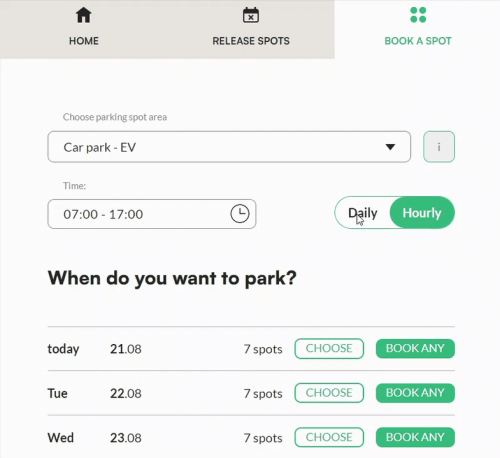
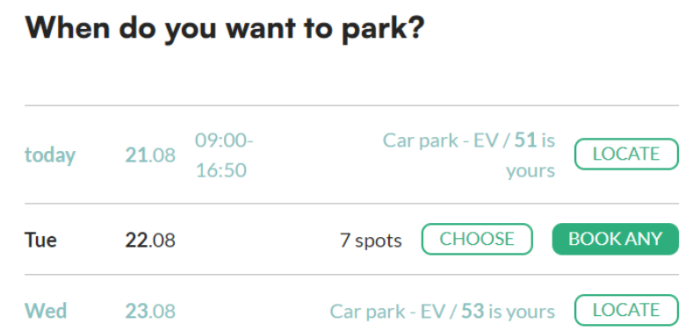
Next, go to When do you want to park and decide whether you want any available spot or a specific one.
Any available spot
- Click Book any.
- The system assigns you the first available spot on your chosen day.
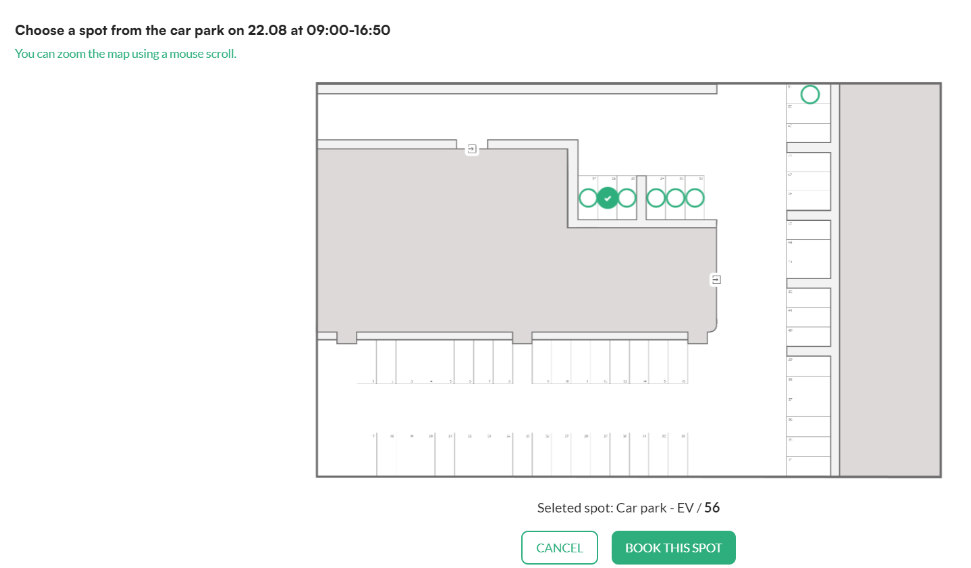
A specific spot from the map
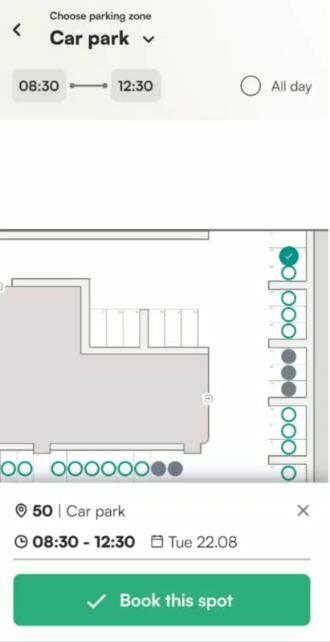
- Click Choose to open the map of the car park. Available spots are shown as green circles. You can zoom in with your mouse scroll wheel.
- Click the green circle for the spot you want.
- Confirm with the Book this spot button at the bottom of the screen.
To book a spot for other days, repeat these steps.
How to check your bookings
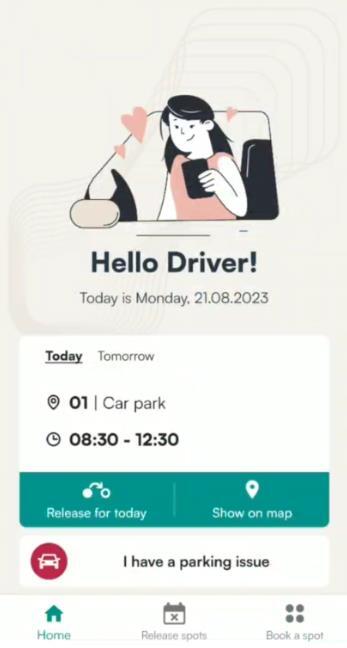
In the mobile app, you can see your upcoming bookings on the home screen of Tidaro or in Parking > Book a spot.
In the web app, your confirmed bookings are shown in Spots, in the Home tab. The booking time is shown next to each spot. If no time is shown, the spot is booked for the whole day.
In the example below, a spot is booked on 21 August from 9 a.m. to 4:50 p.m., and on 23 August for the whole day.
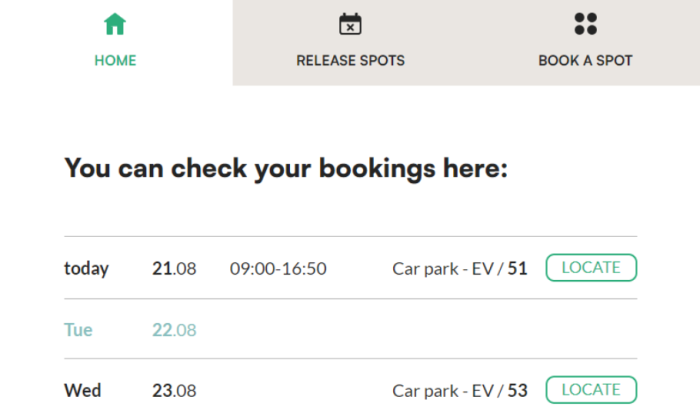
To see where your spot is in the car park, click Locate next to your confirmed booking.
Frequently asked questions
How can I tell that a booking is for the whole day?
No time is shown next to a whole-day booking. If you see a time, the spot is booked only for that period.
Why can't I book a spot for a few hours?
Hourly bookings are not available for everyone. To have them turned on, contact support@tidaro.com.
What does a grey circle on the map mean in the demo account?
The free demo account includes an employee with a permanently assigned parking spot. A grey circle shows an assigned spot.