
You can book a meeting room in the Tidaro mobile app or in the web app. Give your meeting a name, set the time and choose the room. In the mobile app you can also book a free room instantly.
In short
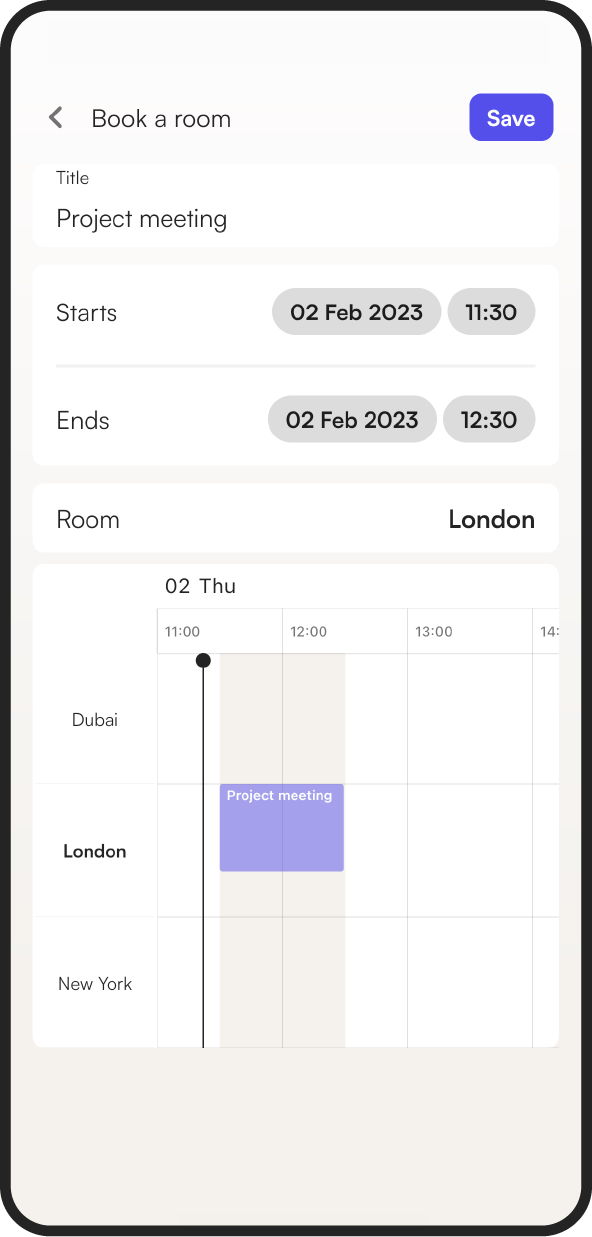
- In the mobile app, tap Book a room on the home screen, fill in the meeting details and tap Save.
- For an instant booking, tap Book now and pick a room from the list.
- An instant booking lasts 30 minutes, or less if the room has another meeting sooner.
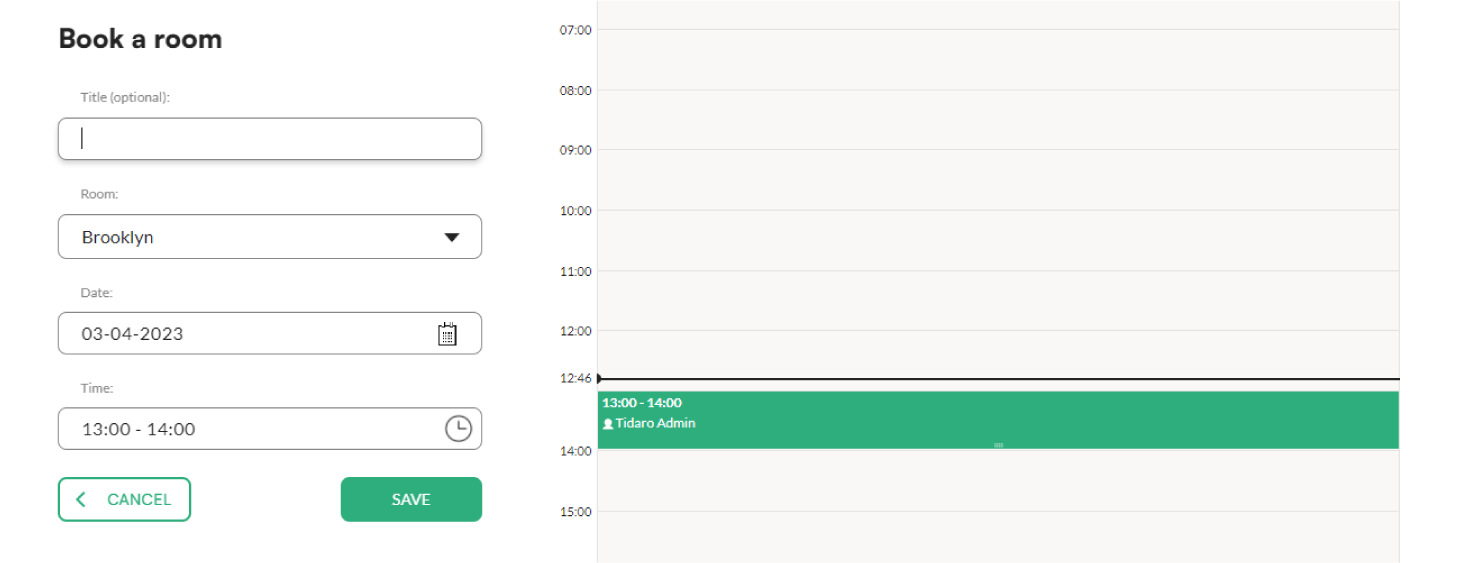
- In the web app, go to Rooms, click Book a room and then Save.
How to book a room
In the mobile app
- On the home screen, tap Book a room.
- Enter a name for the meeting.
- Set the meeting time: select the times in the Starts and Ends fields, or tap the right place in the calendar below.
- Select the room where the meeting will be held.
- Tap Save in the upper right corner of the screen.
In the web app
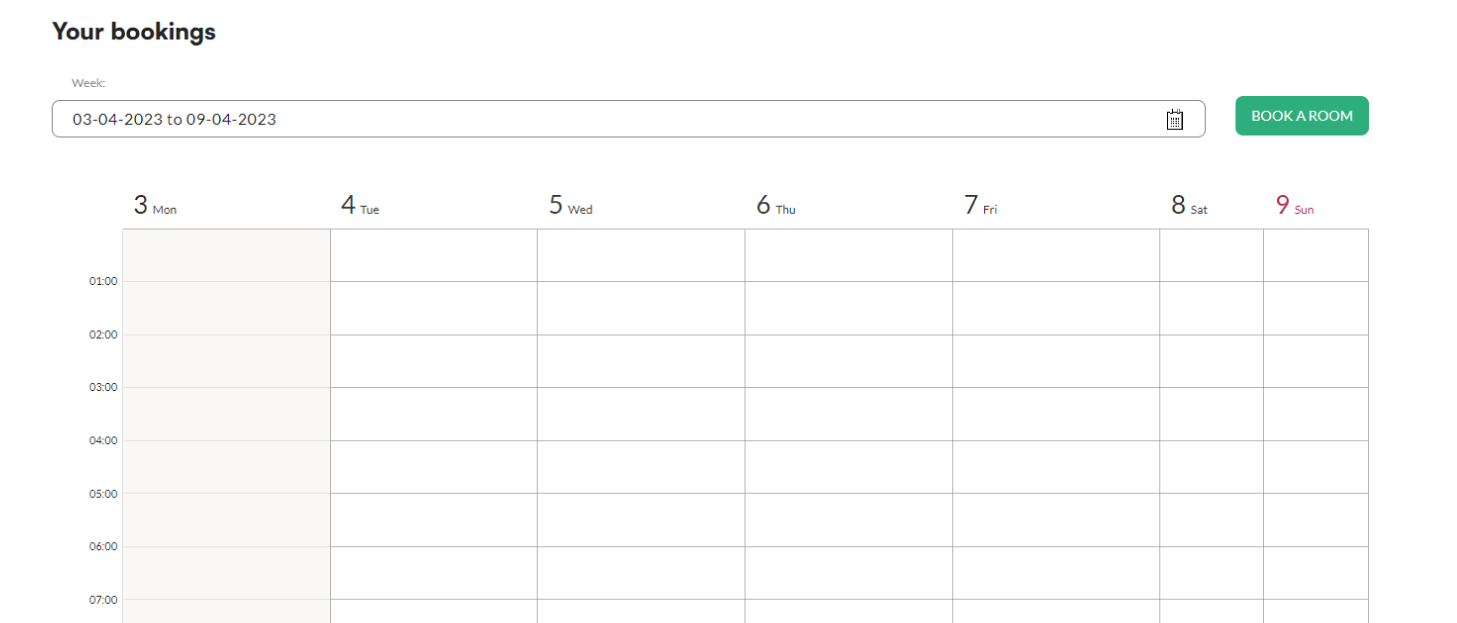
- In the menu, go to the Rooms panel. You will see a calendar view for the current week.
- Click Book a room.
- Enter the meeting title, choose a room and select the time range.
- Click Save.
How to book a room instantly
Use an instant booking when you need a room right now. This option is available in the mobile app.
- On the home screen, tap Book now. You will see a list of available rooms. Next to each room you can see the maximum time you can book it for.
- Tap the room you want to book.
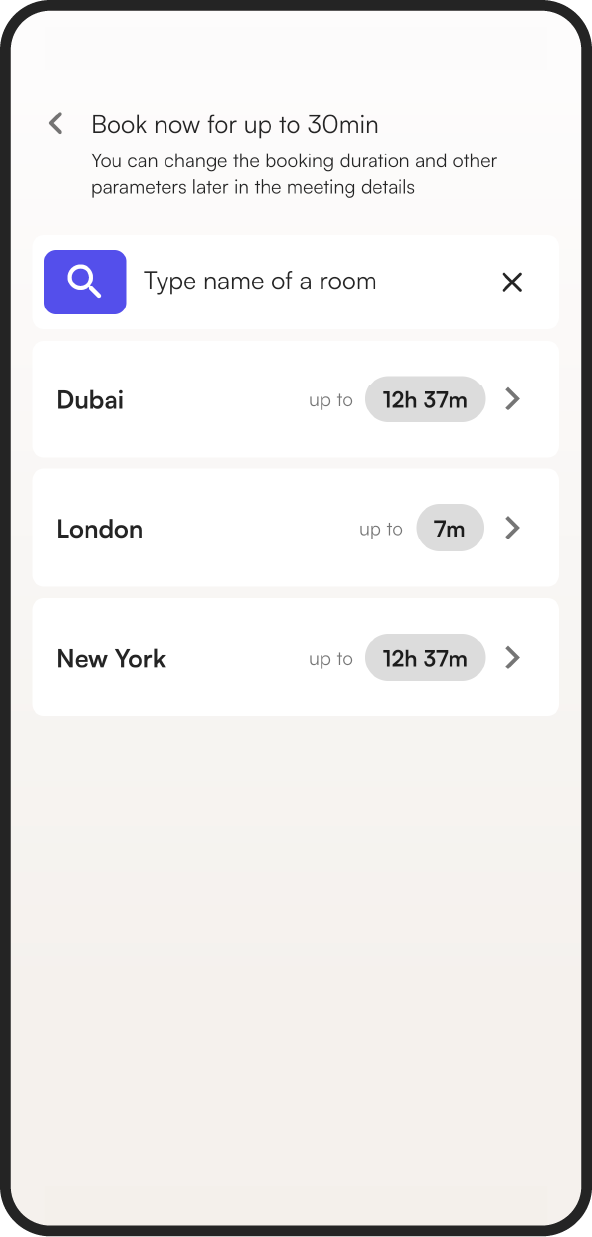
If possible, the app books the room for 30 minutes. If the room is not free for the whole half hour, the app books it for the time remaining before the next scheduled meeting in that room.
Frequently asked questions
How long does an instant booking last?
30 minutes. If another meeting is scheduled in the room sooner, the booking lasts until that meeting starts.
How do I know how long a room is free?
After you tap Book now, the list of available rooms shows the maximum time you can book each room for.