
If you no longer need a meeting room, you can cancel your booking so that colleagues can book the room. If your meeting ends earlier than planned, you can also release the room straight away.
In short
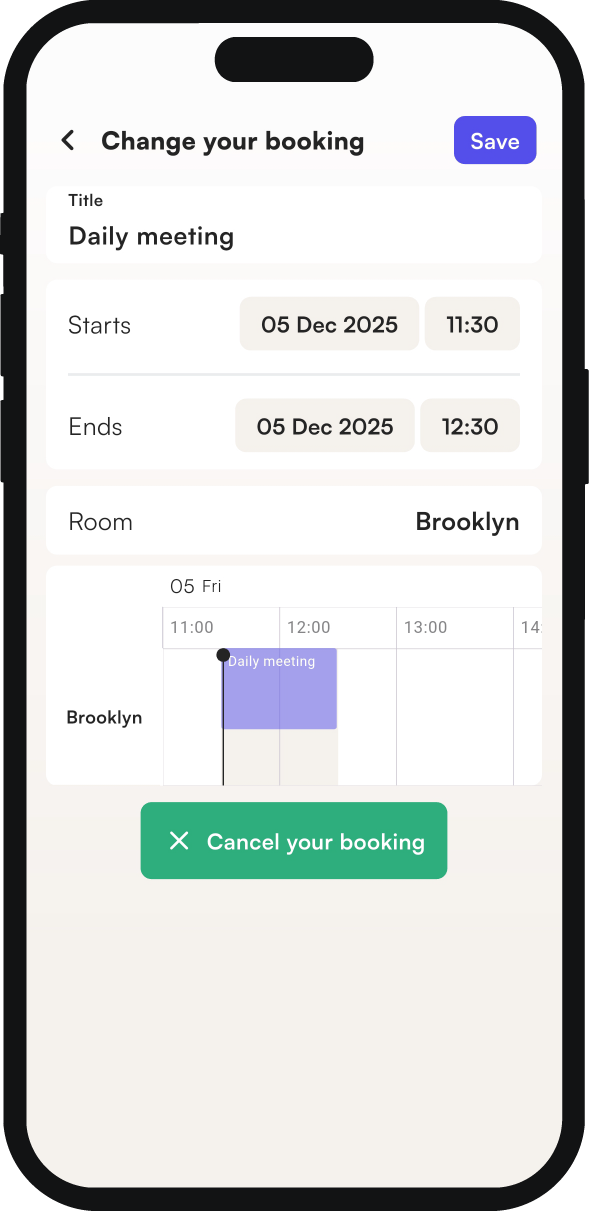
- In the mobile app, cancel a booking in the my bookings tab with cancel booking.
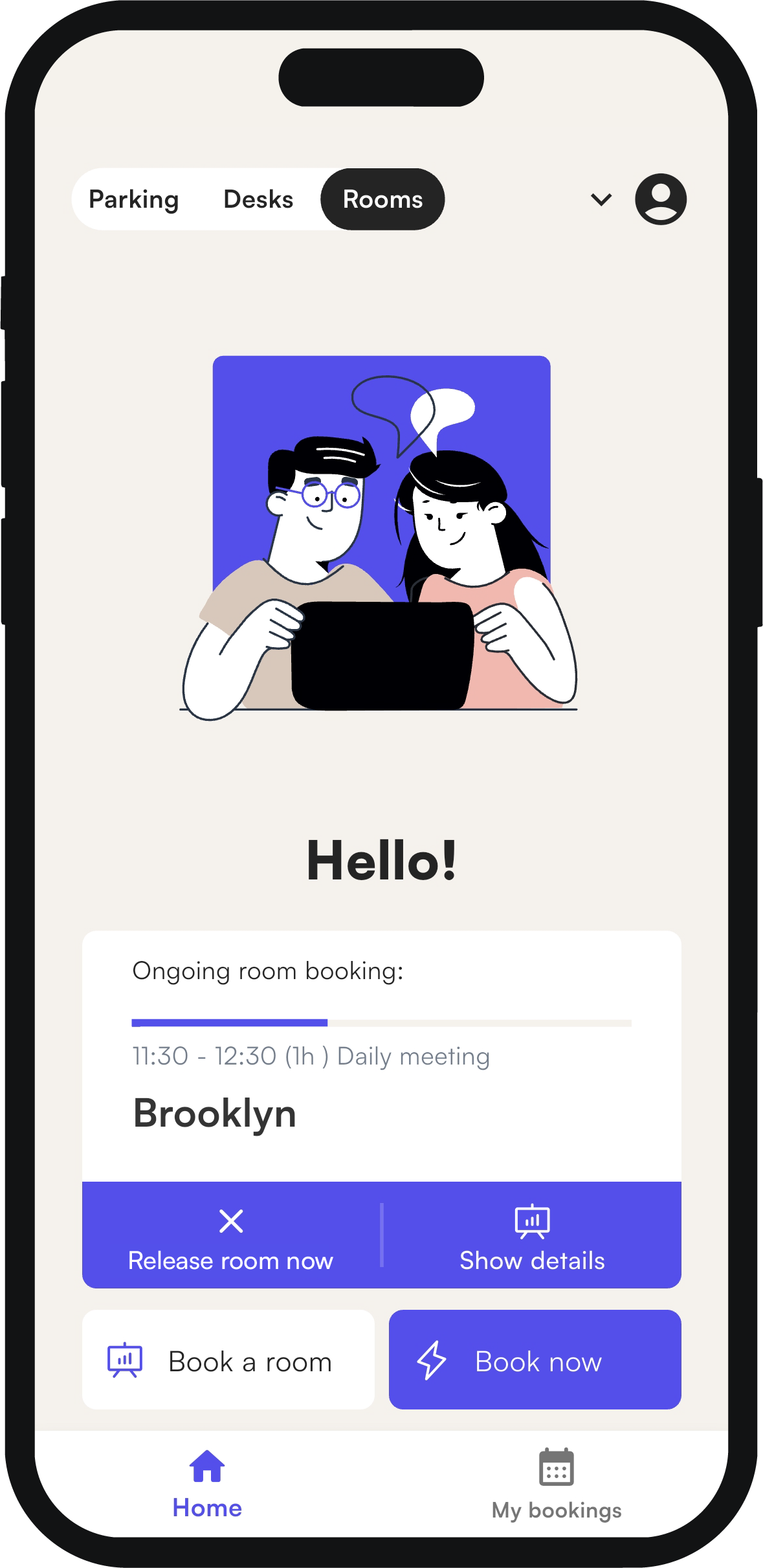
- If your meeting ends early, click release room now on the home screen. This button appears 5 minutes after the meeting starts.
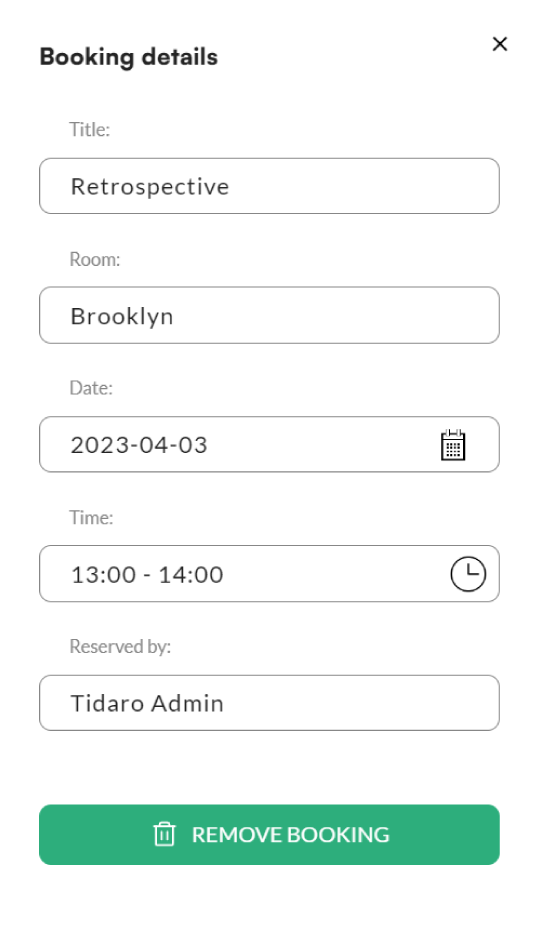
- In the web app, delete a booking in rooms > all rooms with remove booking.
How to cancel a room booking
In the mobile app
- Go to the my bookings tab.
- Click the booking you want to cancel.
- Click cancel booking at the bottom of the screen.
In the web app
- In the menu, go to the rooms panel.
- Open the all rooms tab.
- In the calendar, click the meeting you want to delete.
- In the meeting details panel, click remove booking.
How to release a room when your meeting ends early
You can do this in the mobile app.
- On the home screen, click release room now.
The app ends your booking and the room appears again in the pool of available rooms.
Frequently asked questions
Why don't I see the release room now button?
The button does not appear straight away. It shows up 5 minutes after your meeting starts.
Will a meeting I ended early still be in my calendar?
Yes. The meeting stays visible in the calendar. Only its end time changes.