
Check-in lets you confirm that you have actually arrived at the office or the car park. It works the same way for desks and parking spots. If you don't check in on time, your company may release your booking so a colleague can use the desk or spot.
Good to know: check-in is only used if your company has turned it on. If you don't see any check-in messages in Tidaro, you don't need to do anything.
In short
- On the day of your booking, open Tidaro and tap Check in on the home screen.
- You can check in from 1 hour before to 1 hour after your booking starts.
- If your company uses QR codes, tap Scan QR code in the mobile app and scan the code in the office or car park.
- If you miss the check-in time and auto-release is on, your booking is cancelled automatically.
When can I check in?
You can check in during a 2-hour check-in window. It opens 1 hour before your booking starts and closes 1 hour after.
- Full-day booking: your company sets the default working day, for example 9 a.m. to 5 p.m. You can then check in between 8 a.m. and 10 a.m.
- Booking for a few hours (parking spots, if hourly bookings are enabled): if you book a spot from 4 p.m. to 8 p.m., you can check in between 3 p.m. and 5 p.m.
Your company can set a different check-in window. After the window closes, you can no longer check in and Tidaro shows a message that the check-in time has passed.

How to check in
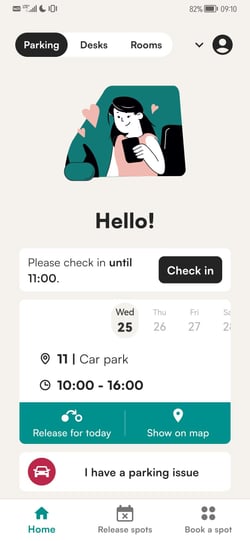
In the mobile app
- On the day of your booking, open the Tidaro app.
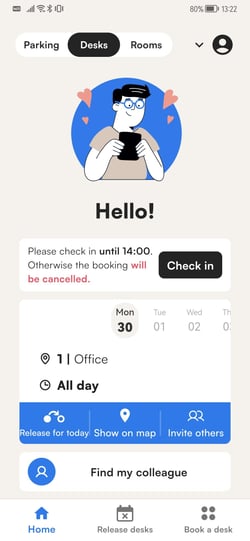
- On the home screen, find the check-in section for your desk or parking spot booking.
- Tap Check in.

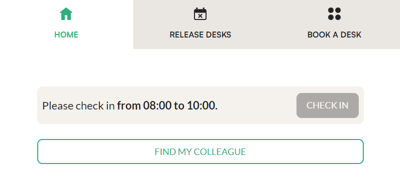
In the web app
- On the day of your booking, log in to the Tidaro web app.
- On the home screen, find the check-in section for your booking.
- Click Check in.
With a QR code
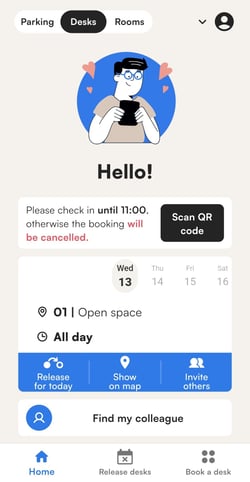
Some companies require you to scan a QR code to check in. The code is provided by your administrator. You can only scan it with the mobile app.
- After you book a desk or parking spot, open the Home tab in the Tidaro mobile app.
- Tap Scan QR code.
- Point your phone's camera at the QR code.
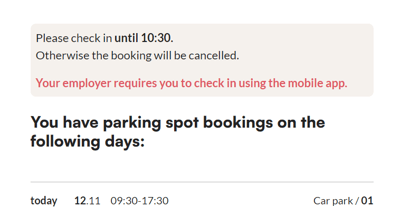
In the web app you will see a banner asking you to use the mobile app to scan the code.
Check-in reminders
On the day of your booking, Tidaro can remind you to check in:
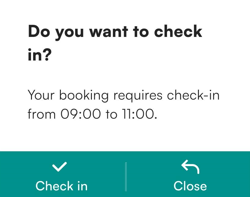
- In-app notification (mobile and web app): choose to check in straight away or close the message.
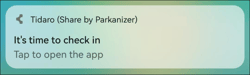
- Push notification (mobile app only).
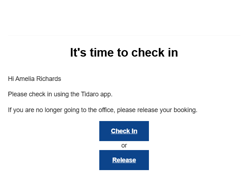
- Email.
What happens if I don't check in?
If your company has turned on auto-release, a booking without a check-in is cancelled automatically when the check-in window closes. The desk or parking spot then becomes available for others to book.
When auto-release is on, the app tells you by what time you must check in to keep your booking.
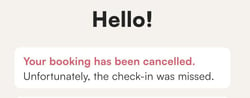
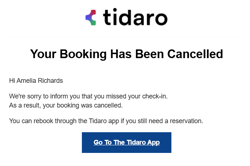
If your booking is cancelled, you will get a push notification or an email about it.
Frequently asked questions
Do I have to check in?
Only if your company uses check-in. Some groups of employees can also be excluded, for example the customer care team or managers.
Can I check in after the check-in window closes?
No. Once the window has closed, check-in is no longer possible. If auto-release is on, your booking has already been cancelled and you need to book again if the desk or spot is still free.
I can't scan the QR code in the web app. What should I do?
QR codes can only be scanned with the Tidaro mobile app. Open the app on your phone and tap Scan QR code on the Home tab.