
Employee groups let you give selected employees access to specific parking zones. After you assign a group to a parking zone, employees in that group can book spots in that zone, in addition to booking in areas that are open to everyone. You can also filter employees and reports by group.
Good to know: this is a task for administrators. Employee groups are created during account configuration and can't be created manually in the app. If you want to add or configure employee groups, contact us at support@tidaro.com. The feature does not need to be turned on.
In short
- Groups are set up by Tidaro during account configuration.
- You assign a group to a parking zone in Preferences > Manage parking spots > Manage parking areas.
- Employees in the group can book in the assigned zone and in areas open to everyone.
- You can filter by group in the employee list and in reports, and find employees who have no group.
When is this useful?
- Several buildings: create a separate group for every building so employees can park next to their offices.
- Electric vehicles: create a group of EV users and assign it to the zone with EV chargers.
- Employees who travel a lot: give them a group with a separate zone so they can always park in the same place and save time in the car park.
- Carpooling: give employees who carpool or use other group transport a zone close to the office to encourage more ecological commuting.
How to assign an employee group to a parking zone
- In the menu, go to Preferences.
- Unfold Manage parking spots and click Manage parking areas.
- Choose the parking area you want to manage.
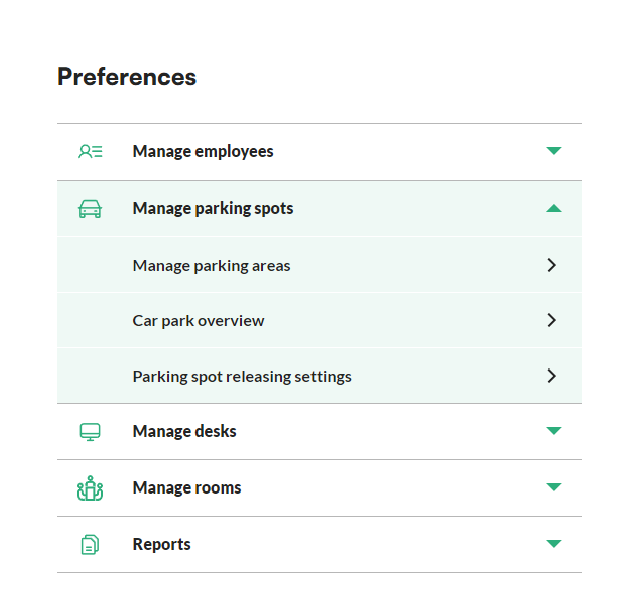
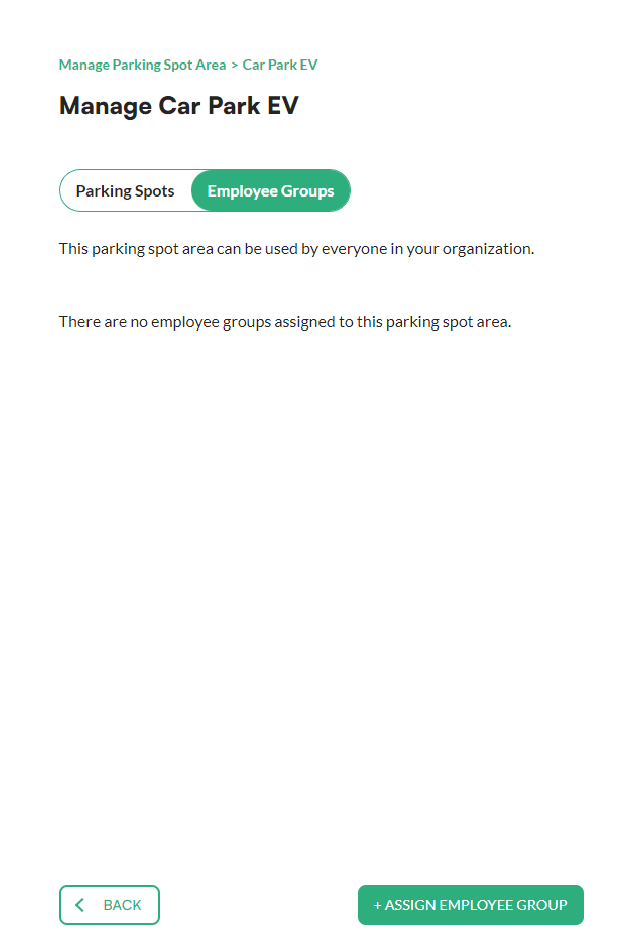
- Go to the Employee groups tab.
- Click + assign employee group at the bottom of the screen.
- Choose the group from the list.
- Click + assign at the bottom of the screen to confirm.
How to filter employees by group
In the employee list
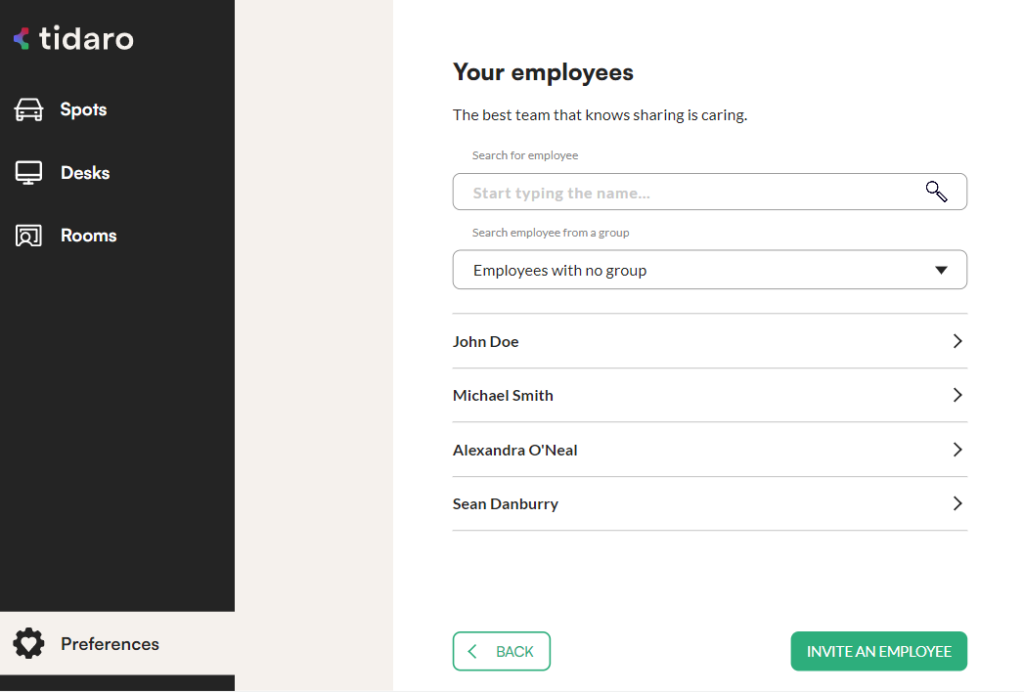
Go to Preferences > Manage employees > Employees and filter the list by group. You can also filter for employees who have no group assigned.
In the example below, four employees are not in any group. They might be newly hired employees who still need to be assigned to a group.
In reports
Go to Preferences > Reports. You can filter by group in:
- attendance reports (desks and parking spots)
- employee activity reports (desks and parking spots)
You can also add employee groups to the employee CSV data export.
Frequently asked questions
Can I create a new employee group in the app?
No. Groups are created during account configuration. To add or configure groups, contact support@tidaro.com.
Can employees in a group still book in other areas?
Yes. They can book in the zones assigned to their group and in areas that are open to everyone.
How do I find employees who are not in any group?
In Preferences > Manage employees > Employees, filter for employees with no group assigned.