
Once you have booked a desk, you can invite colleagues to join you in the office. Your colleagues get your invite by email and as a phone notification.
Good to know: an invite does not book a desk for your colleague. If they want to join you, they need to book a desk in Tidaro themselves.
In short
- After you book a desk, tap Invite others in the main Desks dashboard.
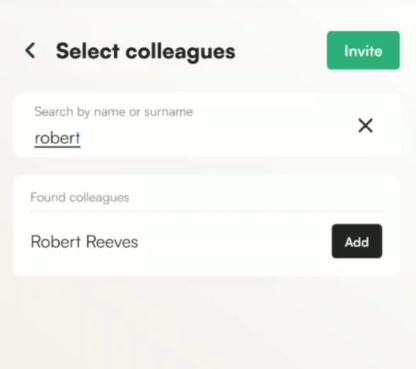
- Search for a colleague by name and tap Invite.
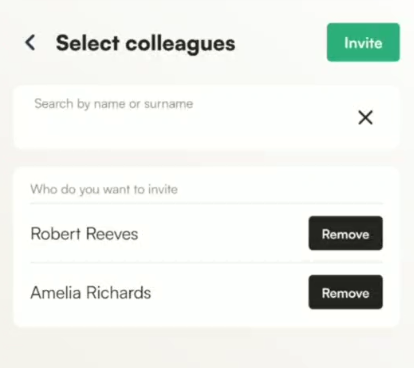
- You can invite several colleagues at the same time.
- You can also invite colleagues from your booking details or right after booking from the interactive map.
How to invite colleagues
- In the main Desks dashboard, tap Invite others.
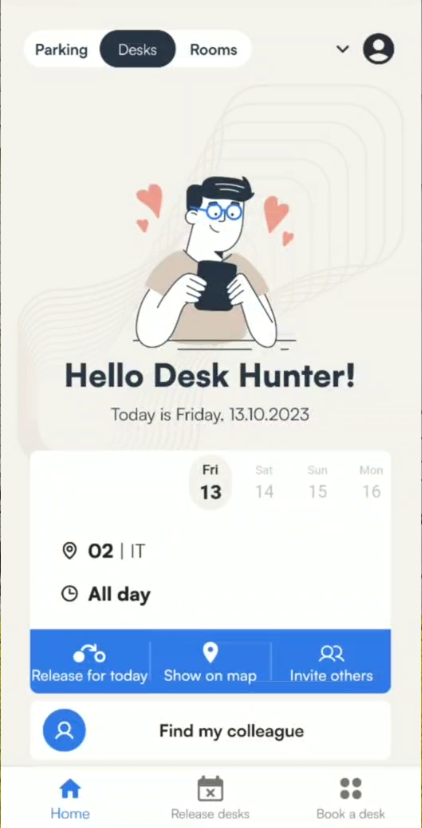
- Type your colleague's name in the search bar.

- Tap your colleague's name in the search results.
- To invite more people, tap Add and search for the next colleague. If you change your mind, tap Remove.
- Tap Invite at the top right of the screen to confirm.
Where else can I invite colleagues from?
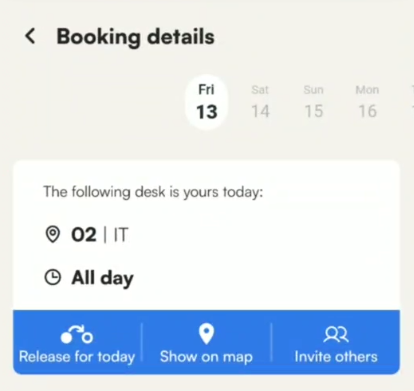
From your booking details
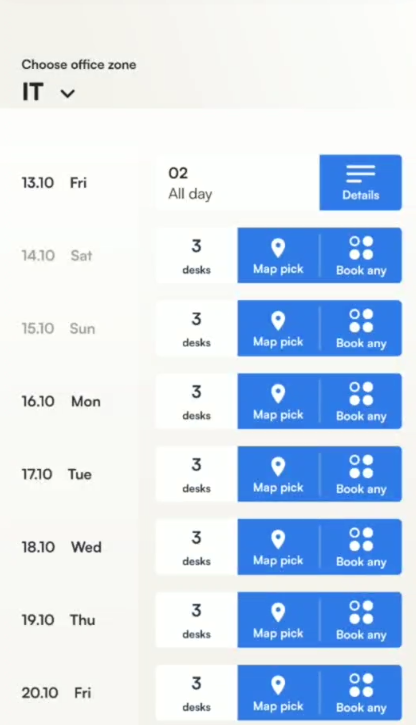
- In the main Desks dashboard, tap Book a desk. You will see your upcoming bookings.
- Tap Details next to your booked desk.
- In the booking details window, invite colleagues the same way as described above.
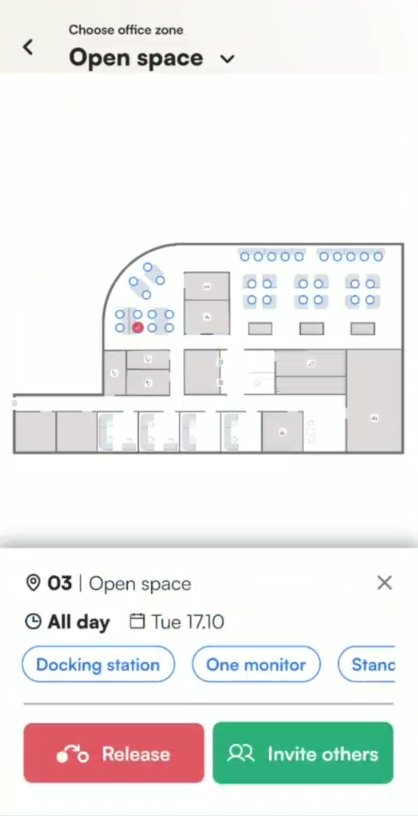
From the interactive map
After you pick a desk and book it from the interactive map, you will also see the option to invite colleagues.
Frequently asked questions
How will my colleague know that I invited them?
They get your invite by email and as a phone notification.
Does an invite reserve a desk for my colleague?
No. Your colleague needs to book a desk in Tidaro to join you in the office.
Can I invite colleagues before I book a desk?
No. The option to invite others appears after you have booked a desk.