
The Rooms View lets you quickly check which rooms are available on a selected day, see your own bookings and plan meetings. It is available in the mobile app and in the web app.
Good to know: viewing others' bookings is a feature you can request by contacting us at support@tidaro.com.
In short
- Open the Rooms tab and go to the All rooms panel.
- You will see the list of rooms and an hourly calendar with bookings for the selected day.
- You can change the date, go back to today and open your own bookings.
- You can book a room directly from this view.
How to open the Rooms View
In the mobile app
- Open the Tidaro app.
- On the top navigation bar, select the Rooms tab.
- Go to the All rooms panel.
In the web app
- Open the Tidaro website in your browser.
- On the left navigation panel, select the Rooms tab.
- Go to the All rooms panel. The button is at the top, in the centre.
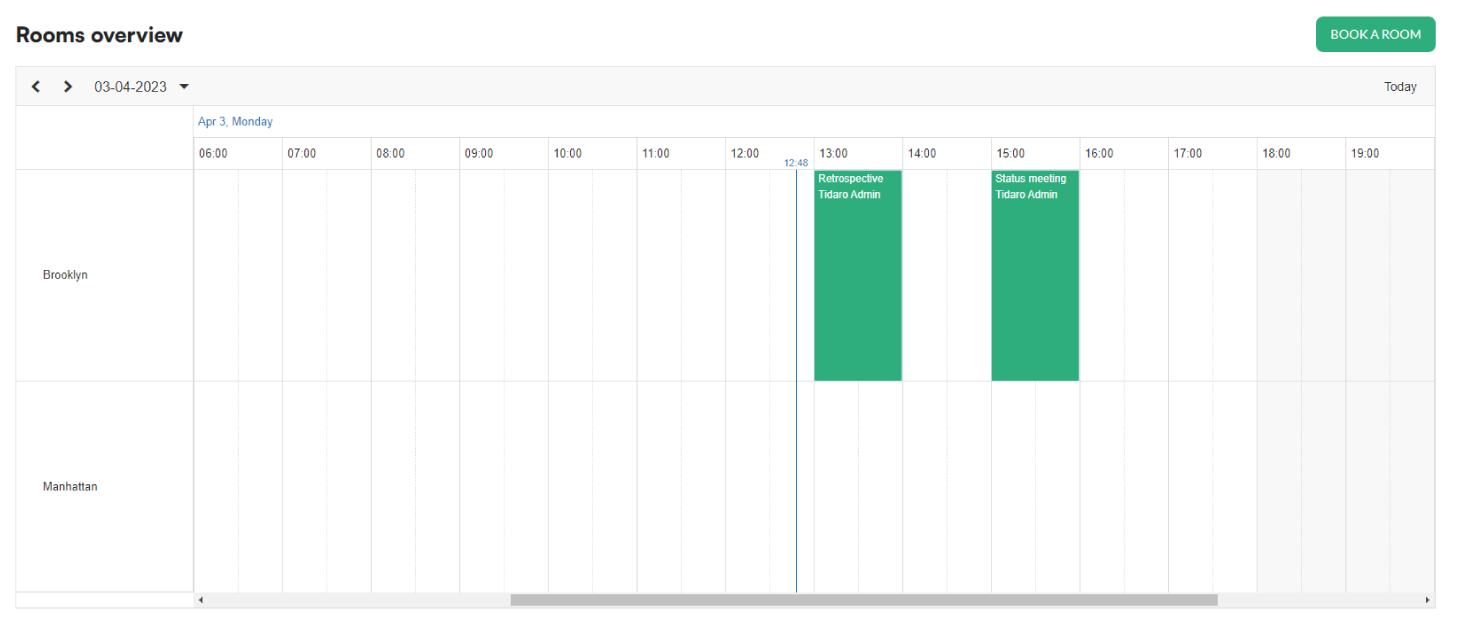
You will see the list of rooms and an hourly calendar with every booking for the selected day.
What can I do in the All rooms panel?
In the mobile app
- Change the date: tap the current date at the top of the screen and select another day from the calendar.
- Go to today's date: tap Today next to the date to return to the current day and time.
- Search for a room: tap the magnifying glass icon, then the Search field next to the Today button above the list of rooms. Type part of the room name, for example "4pax" or "projector", to filter the list.
- Add a new booking: tap the + button in the bottom-right corner of the calendar to open the new reservation form.
- Open your booking: tap your reservation in the calendar to view its details.
In the web app
- Change the date: click the current date at the top left above the table and select a different day from the calendar.
- Go to today's date: click Today at the top right above the table to return to the current day and time.
- Add a new booking: click the green Reserve a room button in the top-right corner above the table to open the new reservation form.
- Open your booking: click your reservation in the calendar to view its details.
What do the booking colours mean?
The colours in the Rooms View help you understand the schedule at a glance:
- Green: your booking.
- Red: someone else's booking.
- Grey: a booking waiting for confirmation from Outlook.
Frequently asked questions
Why is one of my bookings grey?
A grey booking is still waiting for confirmation from Outlook.
Can I view other people's bookings?
Viewing others' bookings is a feature you can request. Contact us at support@tidaro.com.