
Is the car park full? Join a waiting list. If someone no longer needs their spot, Tidaro assigns it to you automatically.
Good to know: waiting lists must be turned on for your company. To enable this feature, contact us at support@tidaro.com.
In short
- If there are no free spots in your chosen parking area, select Join waiting list (in the web app: Join the waiting list).
- You can join several waiting lists and see your position on each one.
- When a spot becomes available, it is assigned to you automatically and you get a notification.
- You can get off a waiting list at any time.
How to join a waiting list
In the mobile app
- Open Tidaro and, in the Parking tab, go to Book a spot.
- Choose the parking zone from the dropdown at the top of the screen.
- If there are no free spots on the days you want, select Join waiting list.
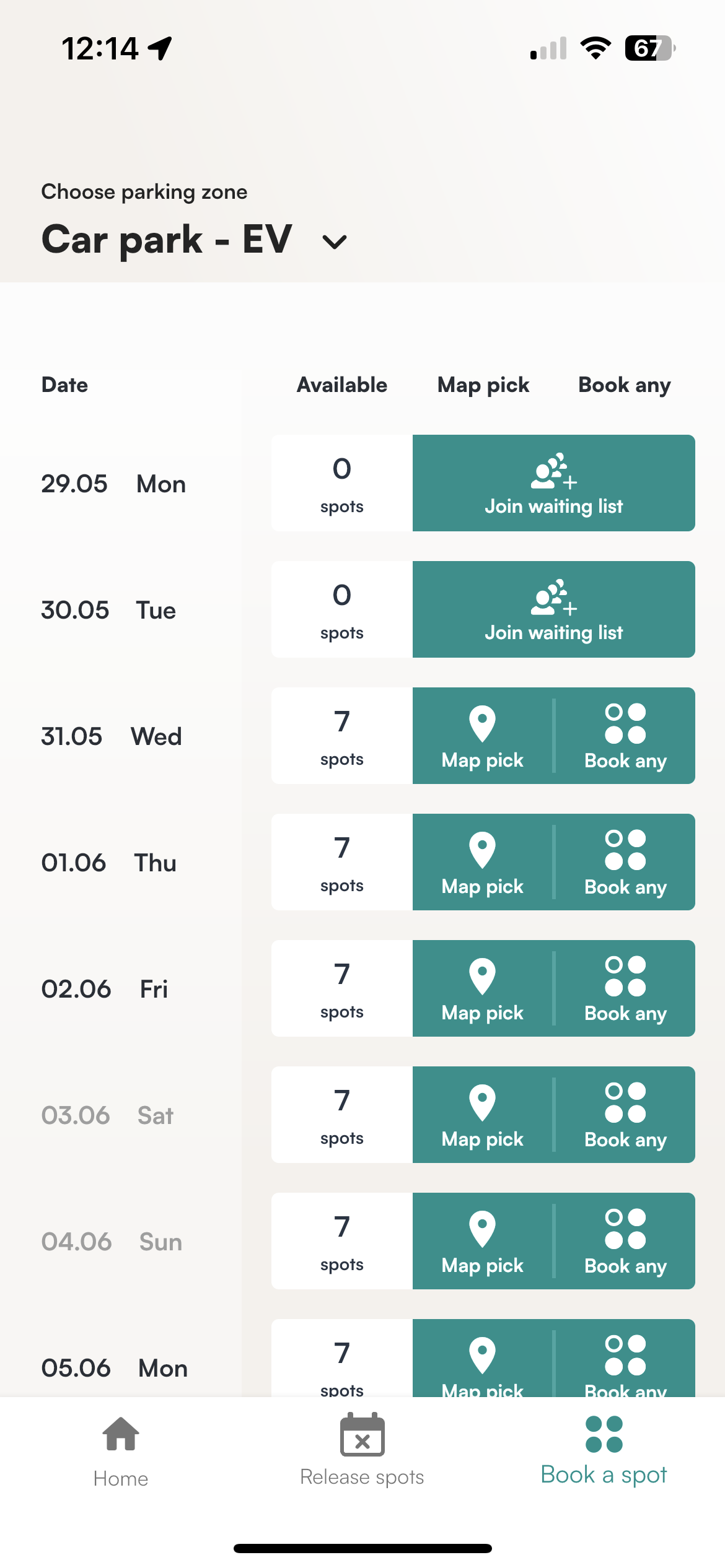
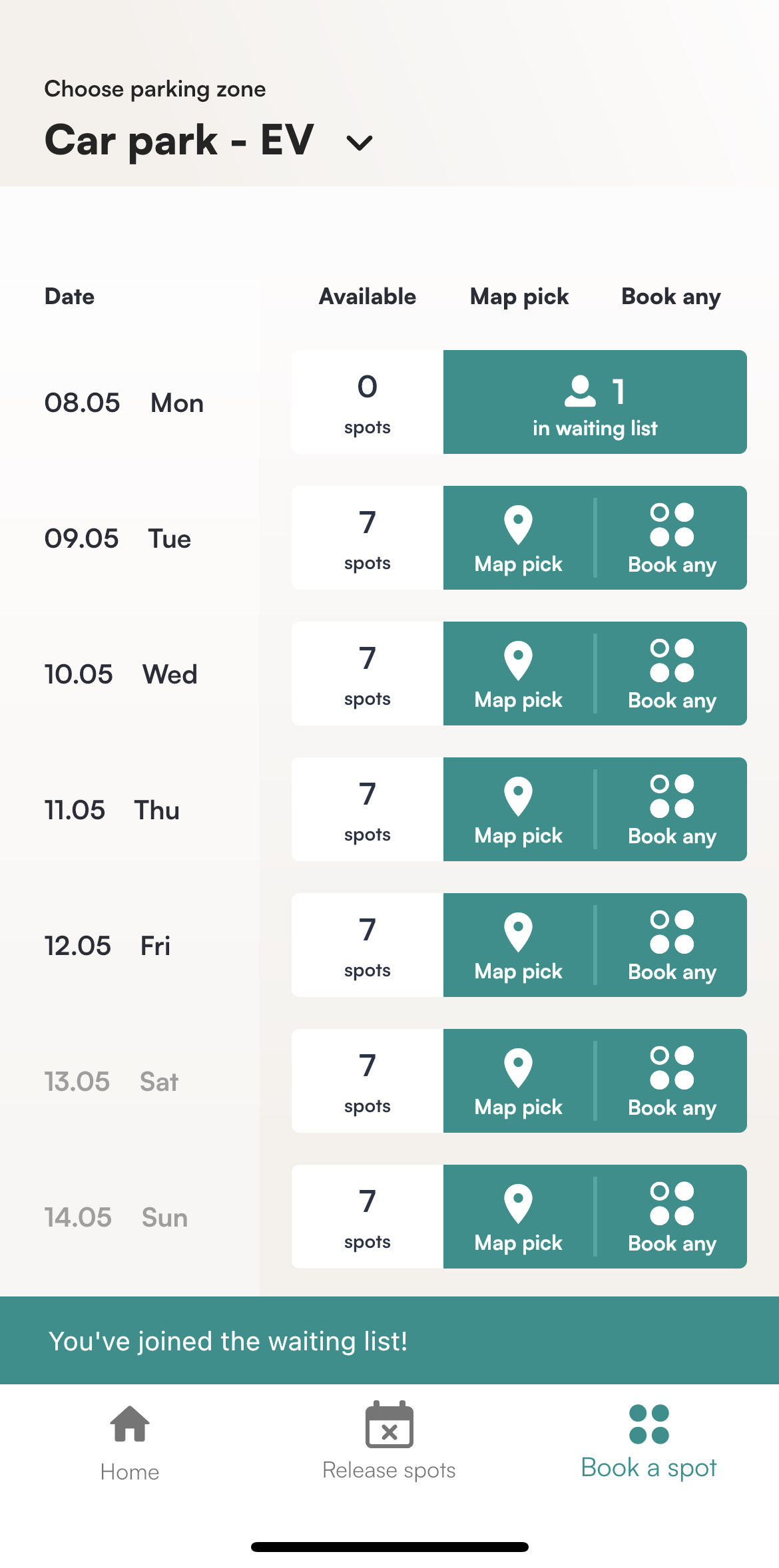
You will see the message You've joined the waiting list. You can join multiple lists.
In the web app
- Open Tidaro and, in the Spots tab, go to Book a spot.
- Choose the parking area from the dropdown.
- If there are no free spots on the days you want, click Join the waiting list.
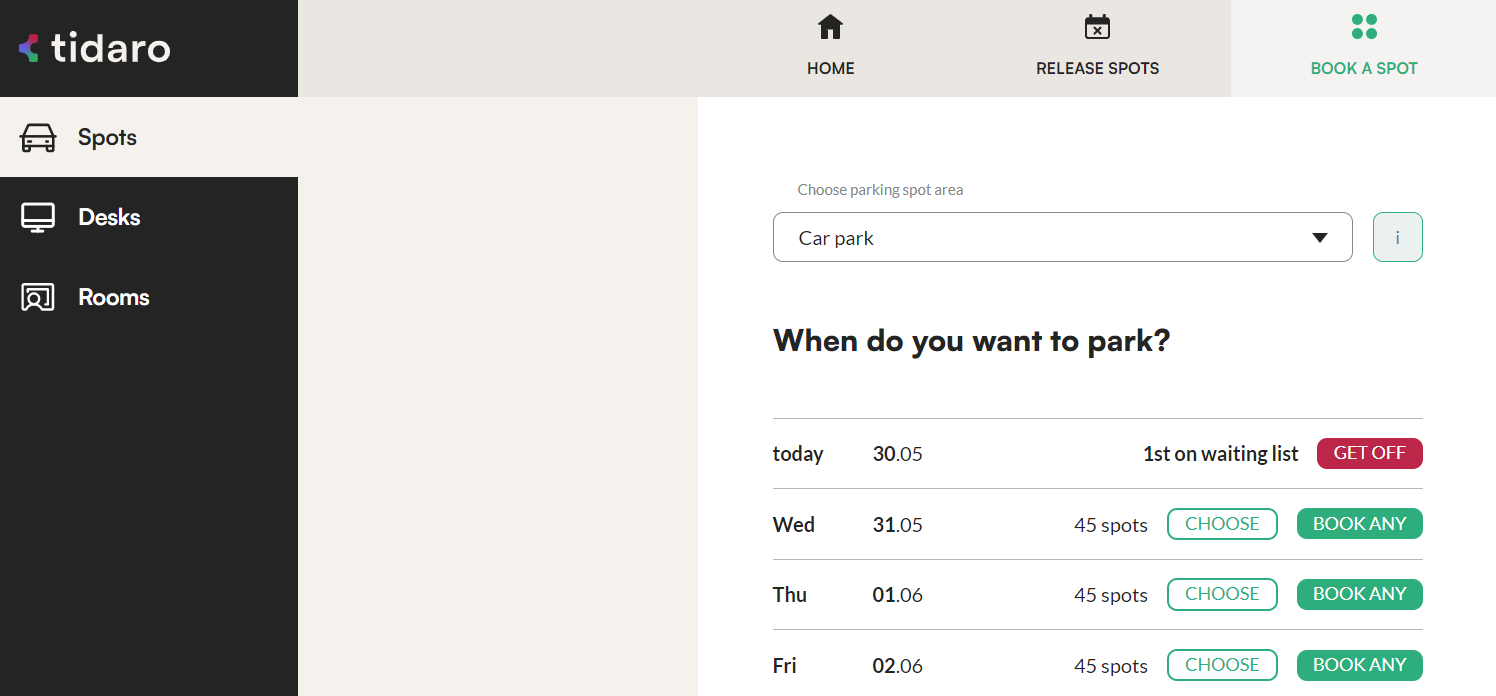
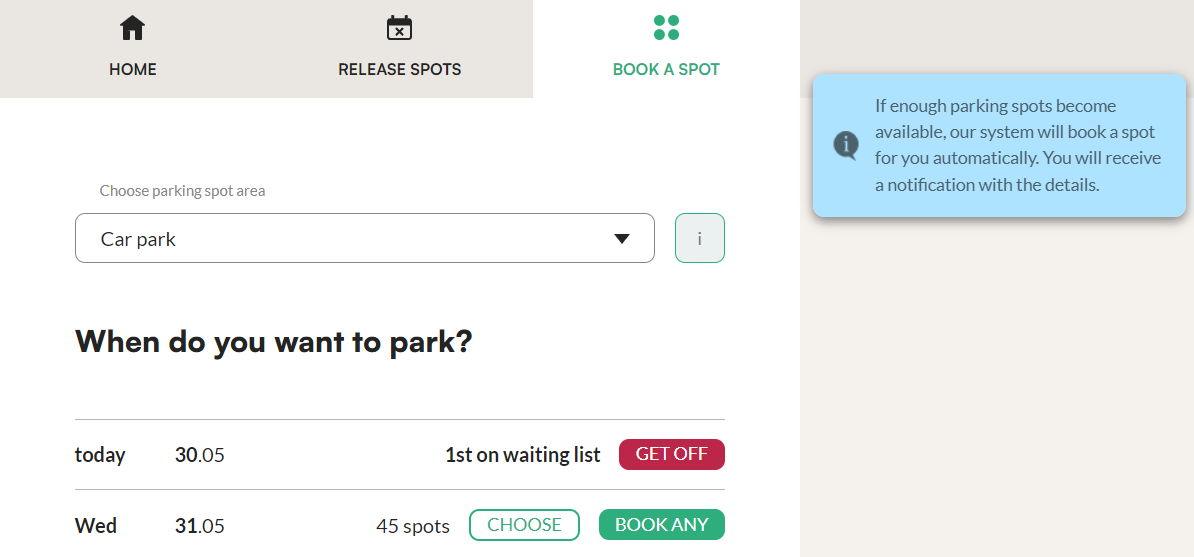
A confirmation message shows your position on the list. It also tells you that if a spot becomes available, the system will book it for you automatically and send you a notification with the details. You can join multiple lists for different parking areas.
How to check your position on a waiting list
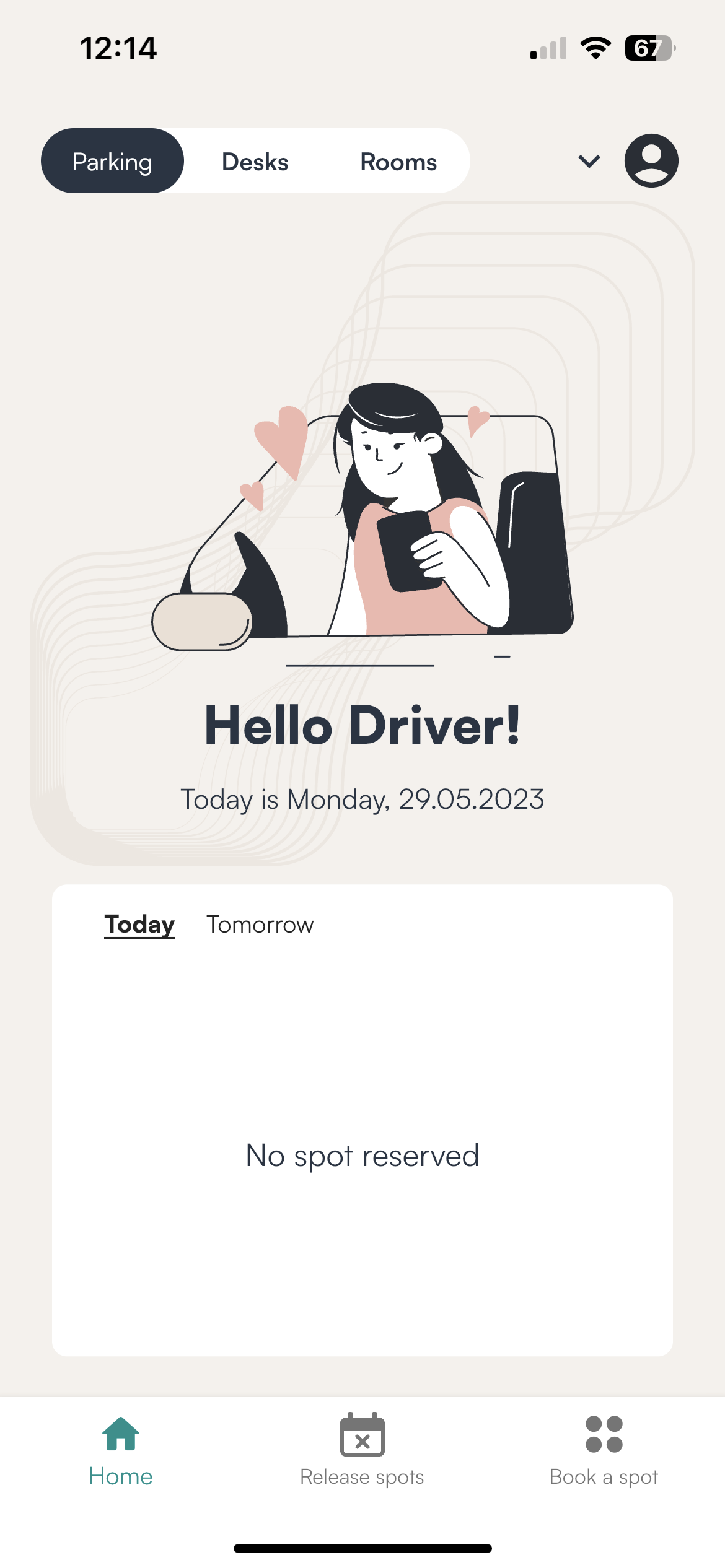
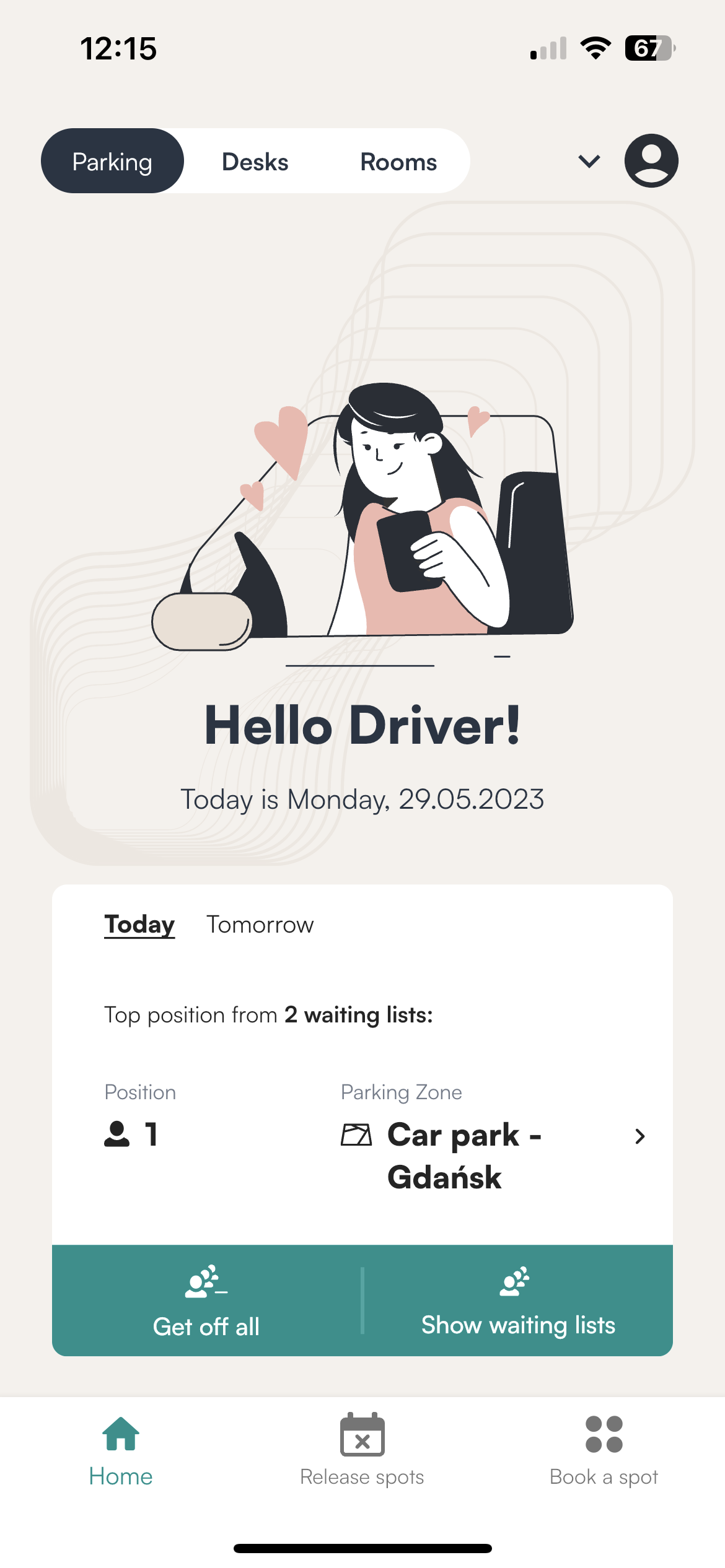
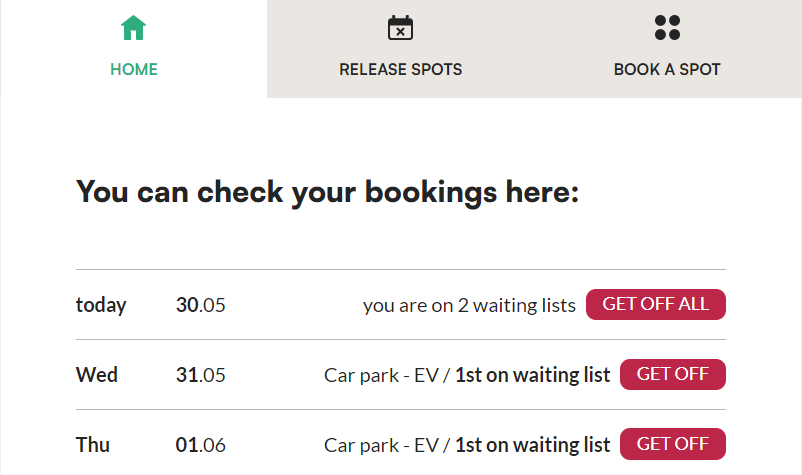
In the mobile app, your positions on your waiting lists are shown on the home screen, in the Parking tab.
In the web app, you see your position as soon as you join the list.
How to get off a waiting list
In the mobile app
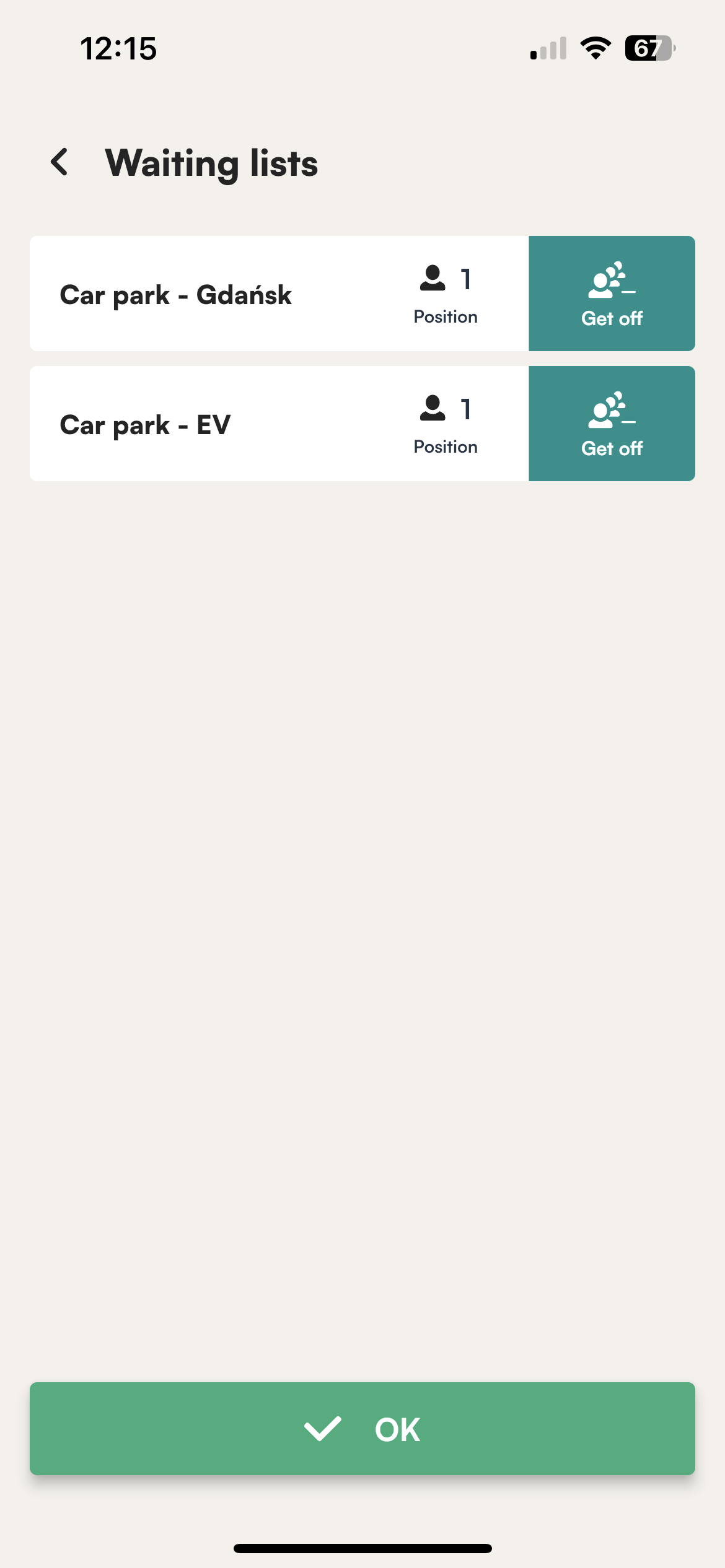
- To leave all waiting lists at once, tap Get off all.
- To leave just one list, tap Show waiting lists, then tap Get off next to that list.
- Tap OK to confirm.
In the web app
- If you no longer need a spot for that day, click Get off.
- Confirm in the message that appears.
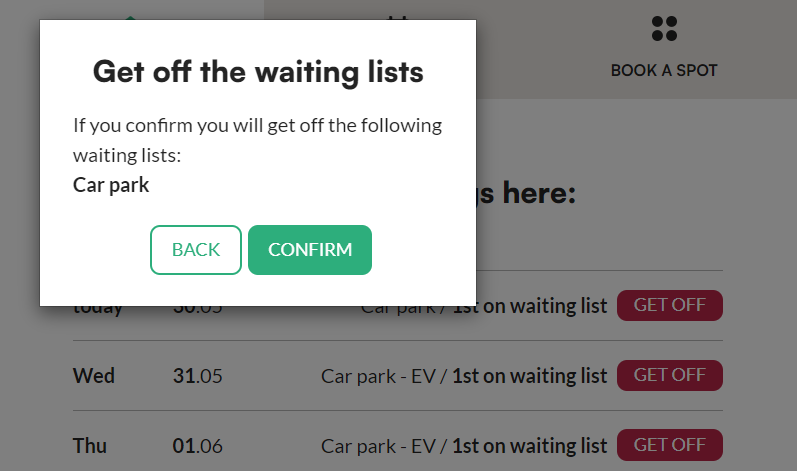
You can get off a waiting list from the Home tab too, not only from Book a spot.
What happens when a spot becomes available?
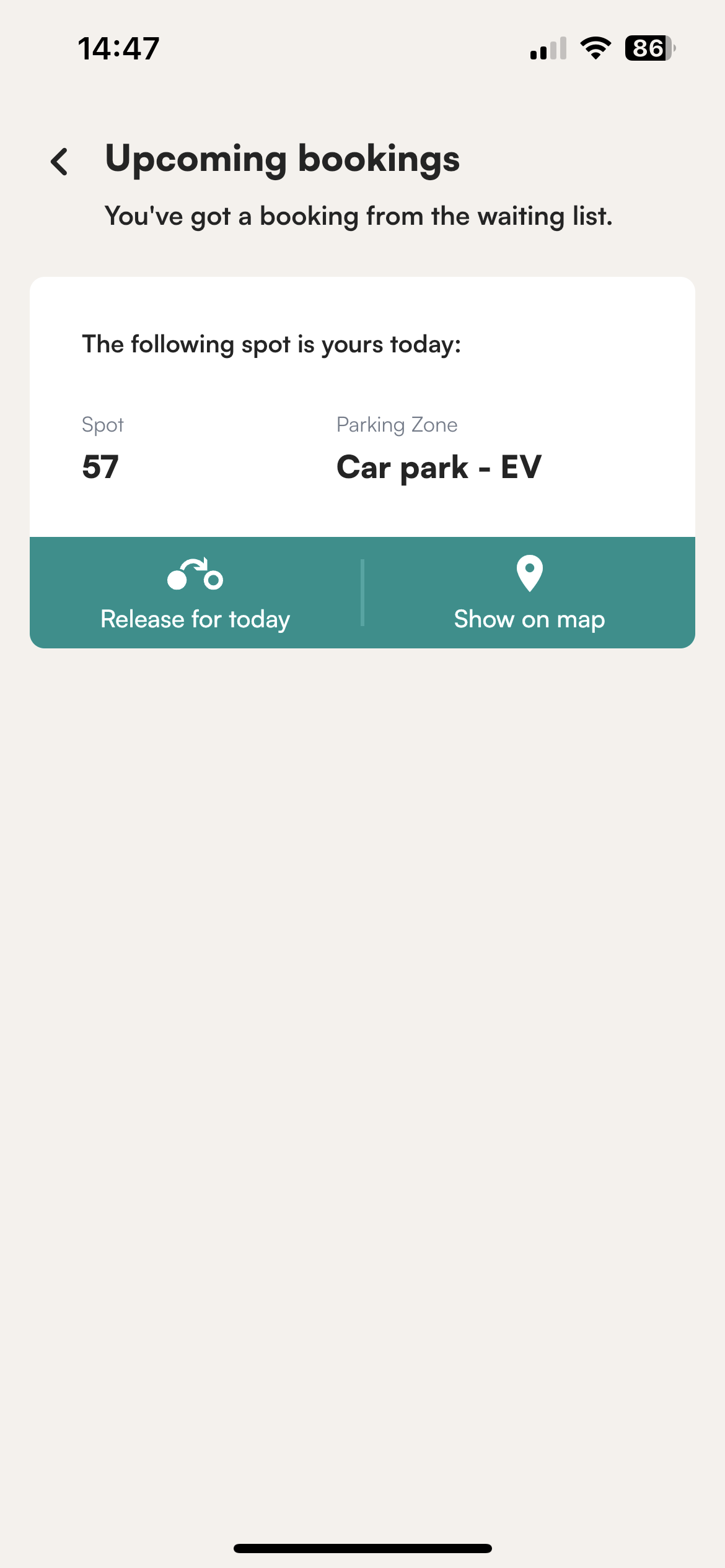
The spot is assigned to you automatically and you get a notification on your phone. Tap the notification to see the details of your parking booking.
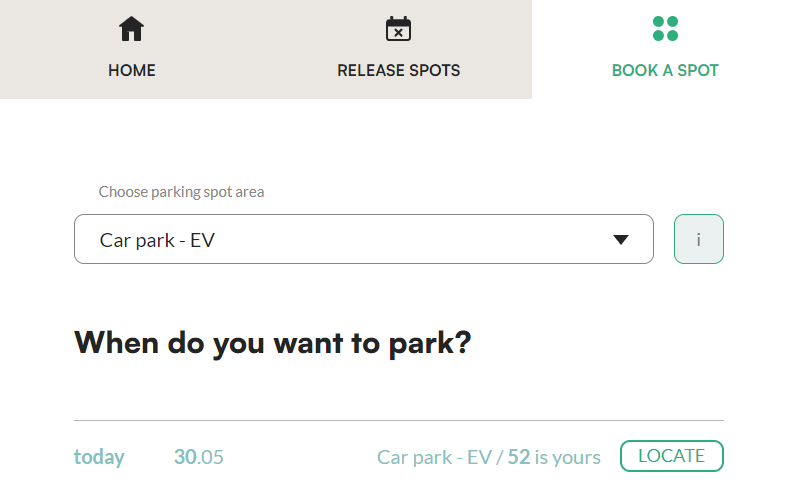
In the web app, the specific spot assigned to you is shown with your booking. Click Locate to see it on the map.
What happens if I book a spot in a different zone?
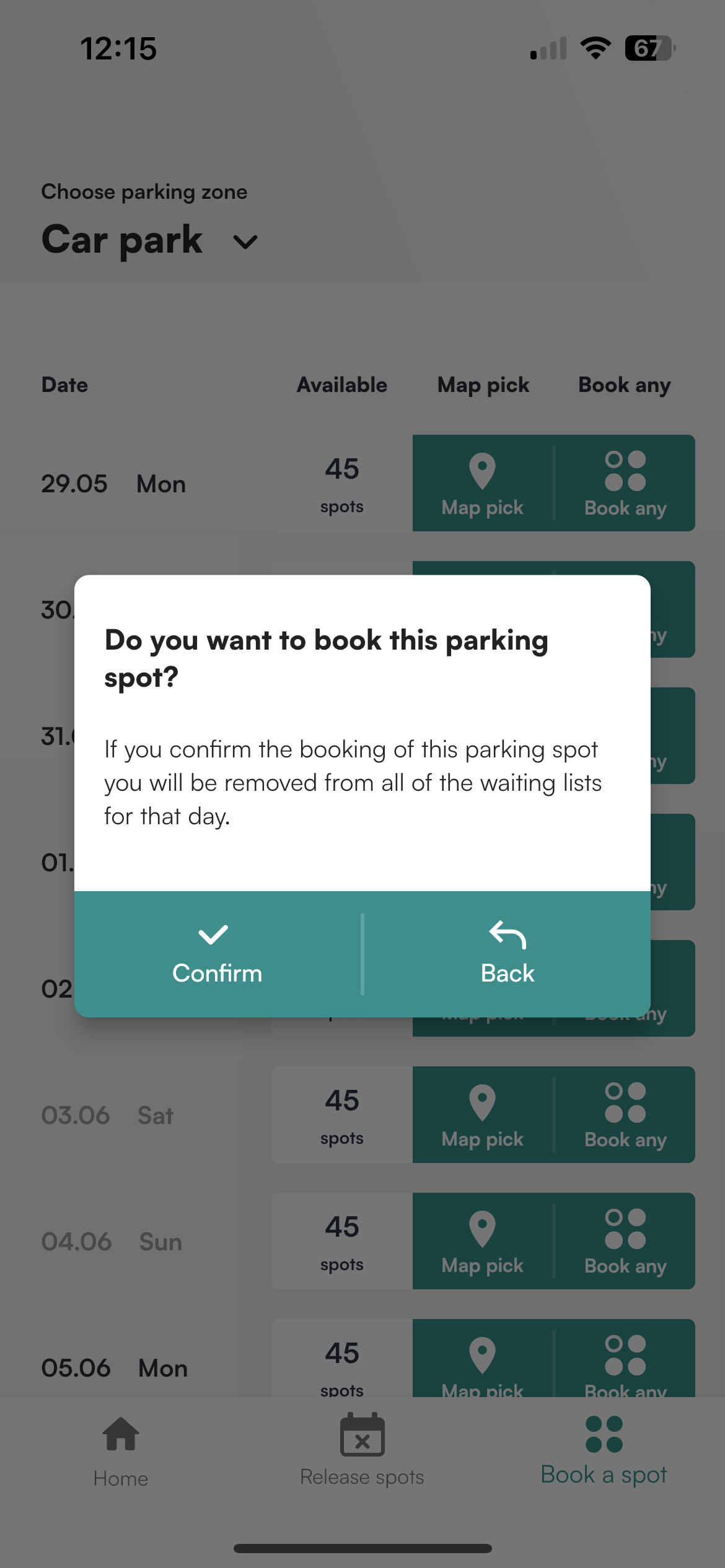
If you are on a waiting list for one zone and want to book a free spot in another, the mobile app asks you to confirm that you want to book that spot. After you confirm, you are removed from the waiting list.
You will then see the booking details in a message. From there, you can release the booking or see the spot on the map.
Frequently asked questions
Can I be on more than one waiting list?
Yes. You can join multiple lists, including lists for different parking areas, and see your position on each one.
Do I need to book the spot myself when it becomes free?
No. The spot is assigned to you automatically and you get a notification.
I don't see the option to join a waiting list. Why?
Waiting lists must be turned on for your company. To enable them, contact us at support@tidaro.com.